I just ran a 120 B model from my laptop.
I don’t have a massive GPU (for the purpose of inference, I have no GPU at all). No enormous model download chewed my bandwidth or crushed my SSD. And my CPU fan didn’t need to file a flight plan.
Not everyone has a Data Centre
Local LLMs are wonderful. Until the model you want doesn’t fit on your machine. That’s the moment when the romance of local AI meets the blunt reality of your hardware. Tiny models are fine. Small models are probably okay too. But larger models can be an exercise in patience, electricity and regret.
NoteBillions of what, exactly?
In the context of LLMs the “B” (or “b”, although this should be avoided because of potential confusion with “bits” or “bytes”) in “120 B” stands for billion parameters.
Parameters are the numerical weights that a model learns during training. These are essentially the “knobs” that the model adjusts to produce its output.
More parameters generally means greater capacity to learn complex patterns. It also means more compute needed for training and inference. A 7 B model fits on a laptop. A 70 B model needs serious hardware.
These are some rough categories for model sizes, along with an indication of hardware they typically require:
- ~1 to 7 B — small and fast; can run on consumer hardware (phones, laptops and desktops);
- ~13 to 30 B — mid-range, good quality; feasible on a high-end GPU;
- ~70 B — large and very capable; needs serious hardware (multi-GPU); and
- ~120 B and more — very large; typically requires data-center-scale infrastructure.
How did I run the monster 120 B model? I just did ollama run. It’s an Ollama Cloud model!
Ollama announced its cloud models in a blog post on 19 September 2025. Ollama Cloud blurs the boundary between local and remote AI. You use Ollama to run a model that’s too big for your machine and it automatically offloads inference to Ollama Cloud. It’s the polite version of “your laptop is not a datacentre”. The command still looks local. And your code barely needs to change (probably no changes required at all!).
All of the normal Ollama commands still work. But something important has changed. The brain has left the building. The model is running somewhere else.
Signing in to Ollama Cloud
You need to sign in to Ollama to use cloud models. This connects your local Ollama instance to your Ollama account.
ollama signinOn a desktop machine, that’ll open a browser. On a headless EC2 instance, the same command prints a confirmation URL that you open in your local browser:
Please visit the following URL to authenticate:
https://ollama.com/signin/confirm?token=xxxxxxxxxxxxxxxx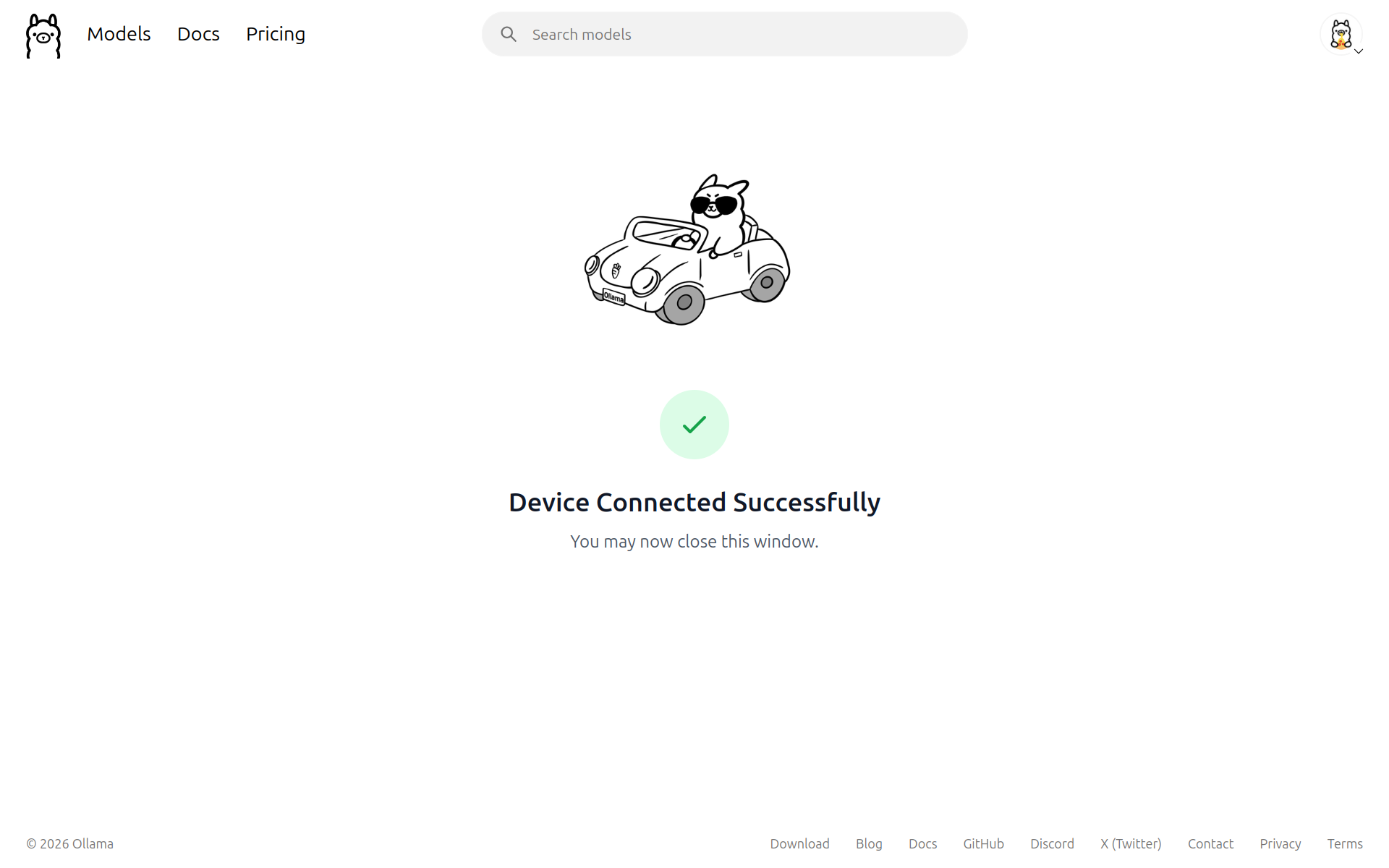
Once you’re signed in you immediately have access to cloud models.
That won’t fit on my Laptop
This is how I ran the 120 B model:
ollama run gpt-oss:120b-cloudThe critical part of that command is cloud in the suffix. It tells Ollama to run the model in the cloud instead of locally. The rest of the command looks like any other ollama run command.

ollama run gpt-oss:120b-cloud command
and its output.Rather than a >>> model prompt you might get an error message:
You need to be signed in to Ollama to run Cloud models.That means you need to run ollama signin. Once that is done, try the previous command again.
If you have not run the gpt-oss:120b-cloud model before then what happens is effectively this:
ollama pull gpt-oss:120b-cloud
ollama run gpt-oss:120b-cloud
The pull step is quick. Rather than download a multi-GB model, it simply downloads a tiny model manifest (a few hundred bytes) that contains the model metadata. It registers the cloud model with your local Ollama instance. The run step then sends requests to the cloud instead of trying to run them locally.
As far as your local Ollama instance is concerned, the cloud model is just another model. It shows up in ollama ls with a size of - to indicate that it is not stored locally.
ollama lsNAME ID SIZE MODIFIED
gpt-oss:120b-cloud 569662207105 - 4 hours ago
llama3.2:3b a80c4f17acd5 2.0 GB 27 hours agoCloudy Smoke Test
Let’s try that hulking cloud model out with something challenging like the Trolley Problem. This time I’m adding the --hidethinking option to keep the output clean.
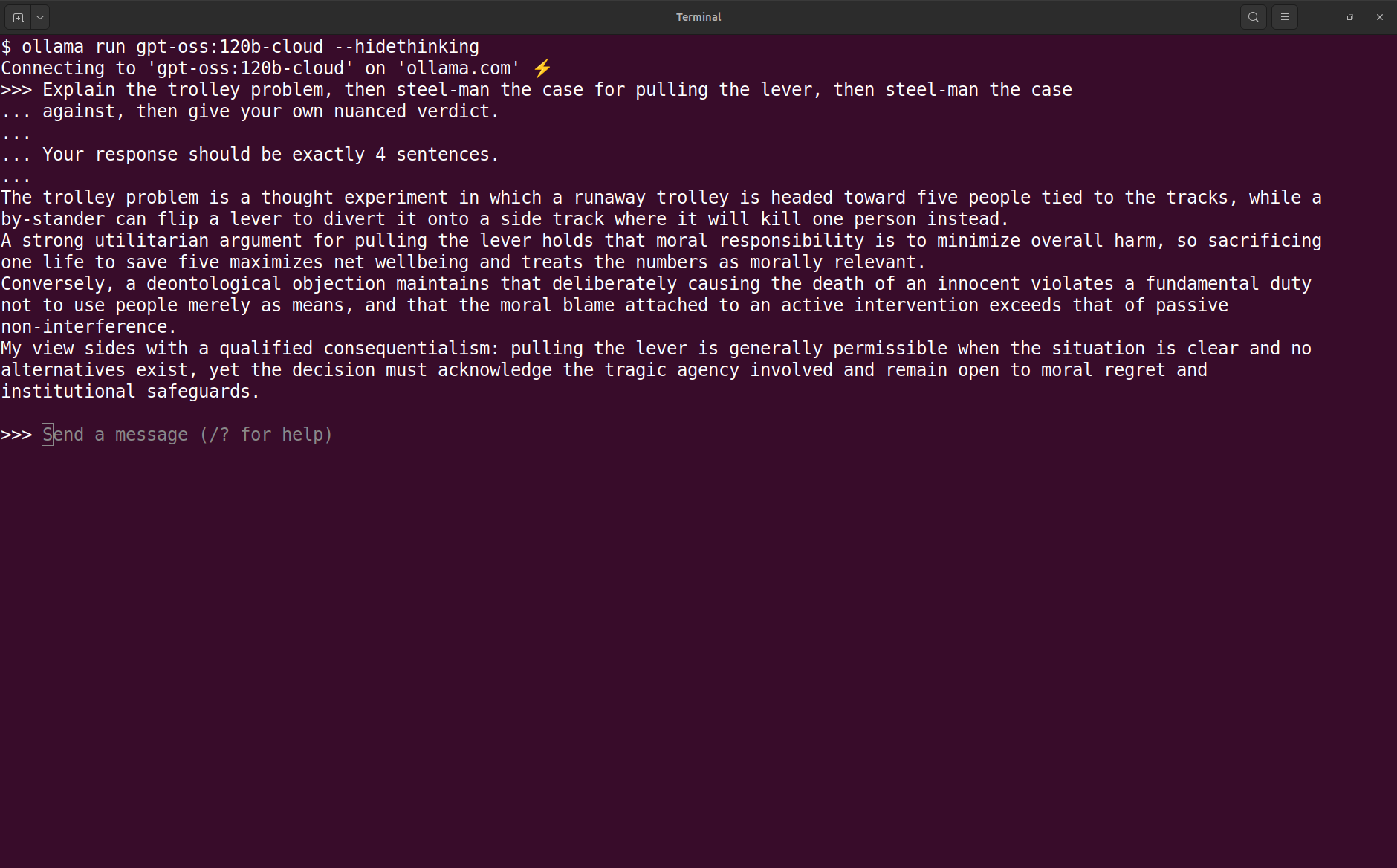
ollama run gpt-oss:120b-cloud command
and output from Trolley Problem prompt.I’m not a philosopher but that looks reasonable to me. The model explains the problem, gives a strong case for pulling the lever, a strong case against pulling the lever and then a nuanced verdict that weighs the two sides. A good sign that it’s working as expected. It also limits the response to four sentences as requested, although those are pretty chunky sentences!
For comparison I checked what the local llama3.2:3b model responded to the same prompt. It is not a fair comparison because the local model is much smaller and less capable, but it is still interesting to see the difference in quality and style.
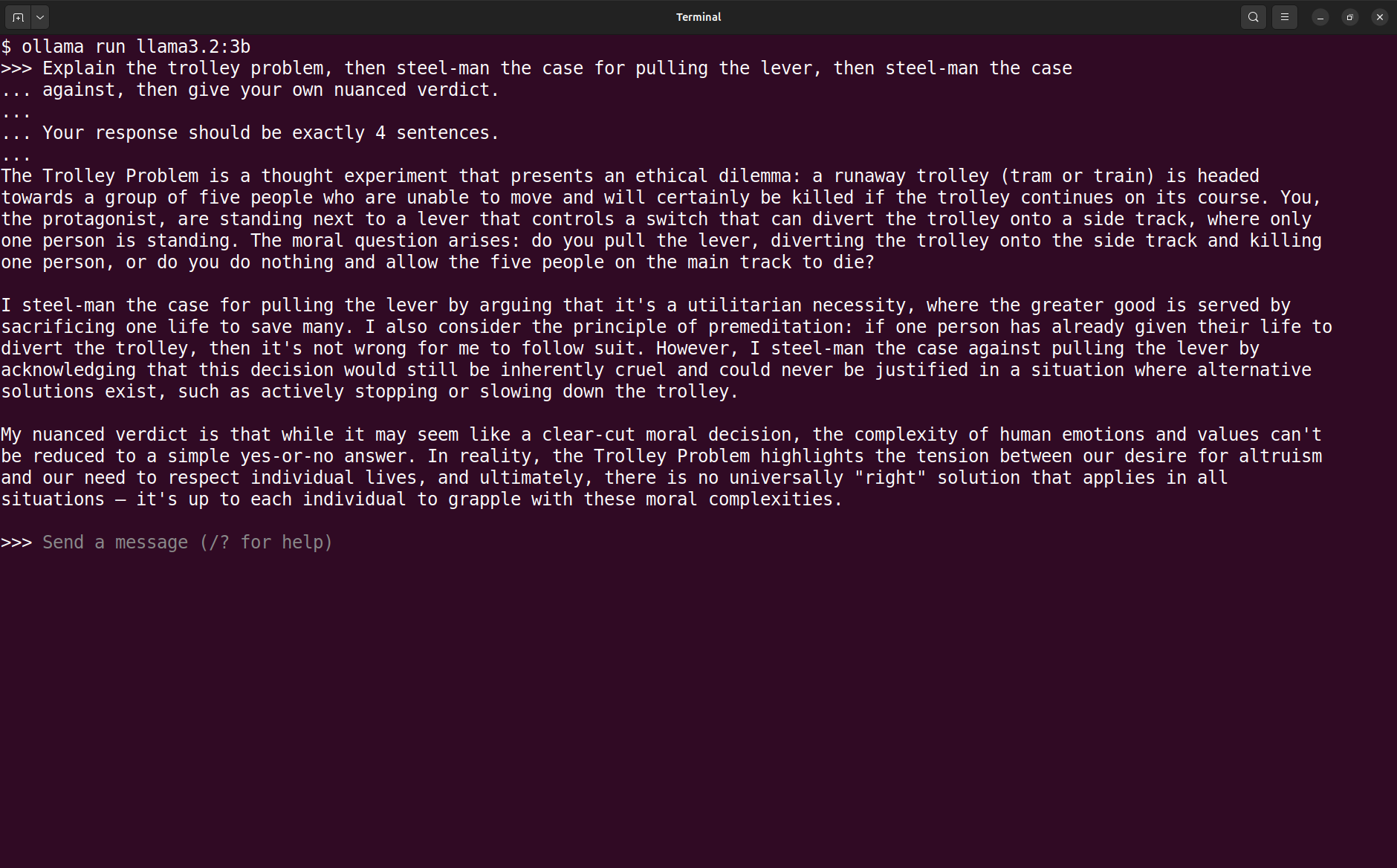
ollama run llama3.2:3b command and
output from Trolley Problem prompt.The problem description is accurate. Then things degenerate. It hallucinates “one person has already given their life” and invents a third option of “stopping or slowing down the trolley”. The model violates the constraints of the problem. And it completely misses the 4 sentence limit.
But, hey, this is not surprising. I’m comparing a small local model to a huge cloud model. And that’s like comparing a bicycle to a Saturn V rocket.
Ollama Cloud from Code
We’ve seen how cloud models run in the Ollama TUI. But I’m more interested in how they run from code. The same local API should work, but the model is running somewhere else.
API Key
First you’ll need to get your hands on an API key. Go to API Keys or open the Keys tab in your account settings.
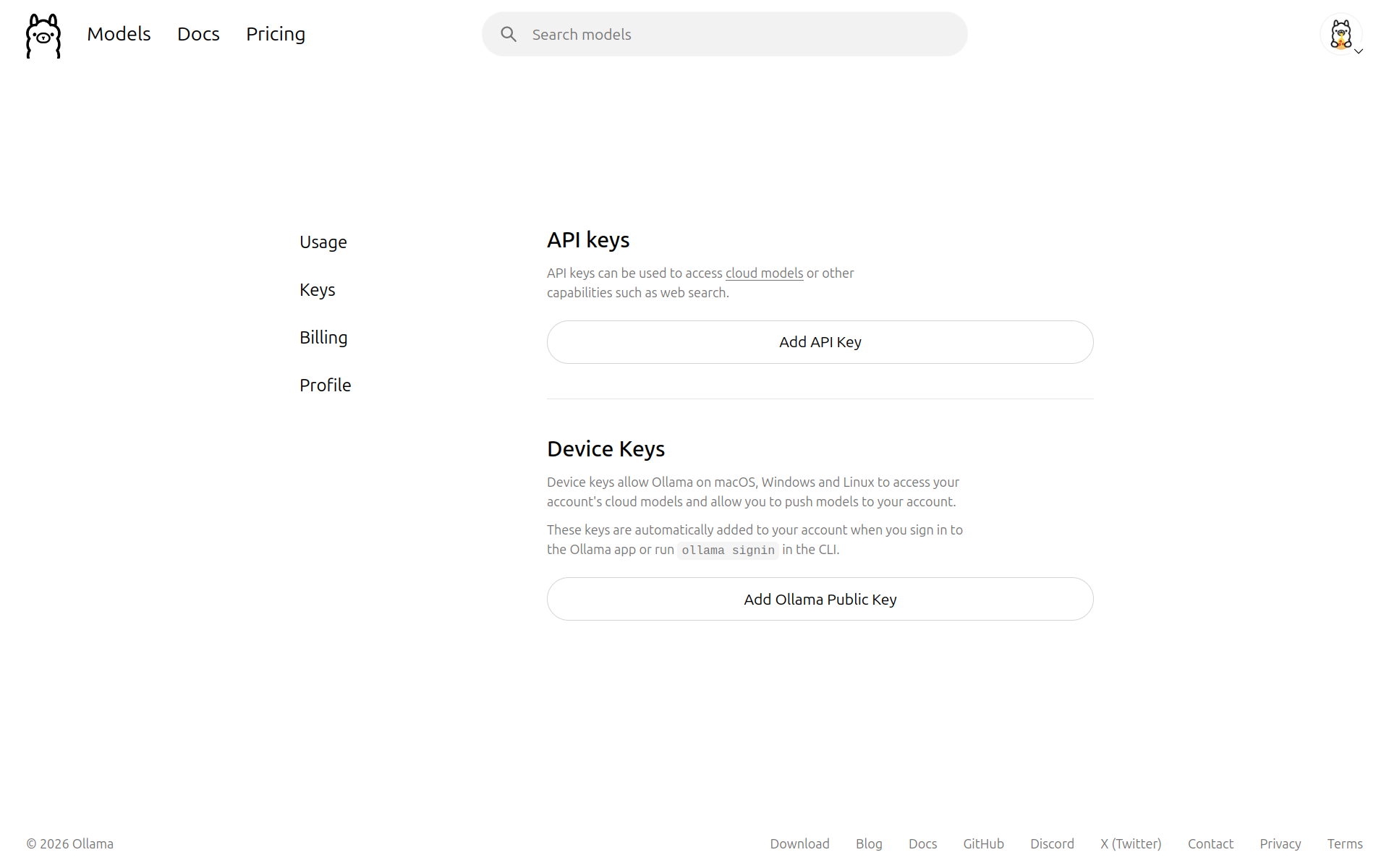
Click the big Add API Key button, give a name for the key (it’s optional, but if you’re going to have more than one then name them!) and click Generate API Key. Copy the key and store it somewhere safe. You won’t be able to see it again. I set an OLLAMA_API_KEY environment variable in an .env file and also export it directly in my shell environment.
API Usage
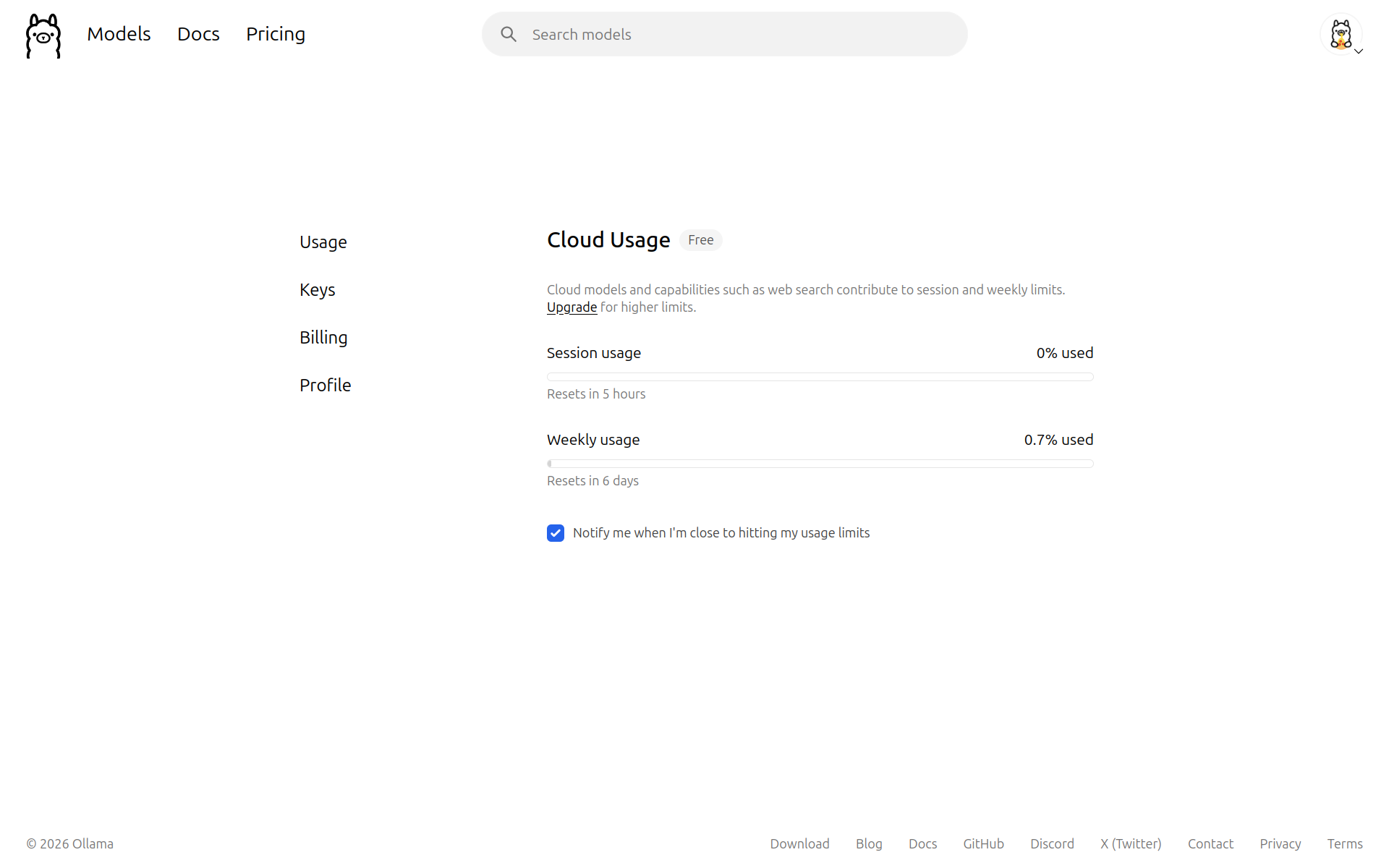
While you’re in your account settings it’s worth taking a look at the Usage tab. It shows your API usage broken down into Session usage (resets every 5 hours) and Weekly usage (resets weekly). It’s worthwhile keeping an eye on these and being aware of when you’re going to smack your head on the ceiling. Although, the limits for a free account are surprisingly generous, if you need more then you can sign up for a paid plan.
Ollama Cloud API
If you’ve signed into your Ollama Cloud account, then you can immediately use the local Ollama API:
curl http://localhost:11434/api/chat -d '{
  "model": "gpt-oss:120b-cloud",
  "messages": [{
    "role": "user",
    "content": "Explain MoE routing in two sentences."
  }],
  "stream": false
}'
No credentials necessary because you’re using the API on your local Ollama instance, which is already authenticated with your account. The only difference between this and an API request to a local model is the model name in the payload.
Why did we go to the effort of getting an API key if it’s not being used? Because we can completely bypass the local Ollama instance and call the cloud API directly. You can send the API requests to two possible destinations:
http://localhost:11434— no authorisation but the model name must includecloudsuffix; orhttps://ollama.com— requires an API key and the model name does not includecloudsuffix.
To query a cloud model directly, bypassing the local Ollama instance:
# 🚧 You need to export your API key as OLLAMA_API_KEY.
curl https://ollama.com/api/chat \
  -H "Authorization: Bearer $OLLAMA_API_KEY" \
  -d '{
  "model": "gpt-oss:120b",
  "messages": [{
    "role": "user",
    "content": "Describe what happens during tokenisation in two sentences."
  }],
  "stream": false
}'
🚨 The local Ollama server uses HTTP but the cloud API uses HTTPS.
The same principles apply to using the Ollama API from Python, JavaScript or R. Choose your favourite poison.
We now have three modes for running Ollama models:
- Local — Everything on your machine. Privacy and offline use.
- Hybrid — Local Ollama and inference in the cloud. Bigger models with local tools.
- Cloud — Everything in the cloud. When you can’t run Ollama locally.
Hybrid sits in the middle: it keeps the ergonomics of local Ollama while quietly adopting the operational model of a hosted LLM.
Timing Comparison
I’d like to quantify the performance difference between those modes. My little experiment will run the same prompt repeatedly in each mode and compare the time to first token and total generation time. The prompt is a simple question that should be easy for any model to answer, but complex enough to require some thought and generation time. To ensure that this is a fair comparison I’ll be using the gemma3:4b model both locally and in the cloud. I’m using a slightly more sophisticated model than gemma3:4b to make the comparison more meaningful, while still keeping it small enough to run locally.
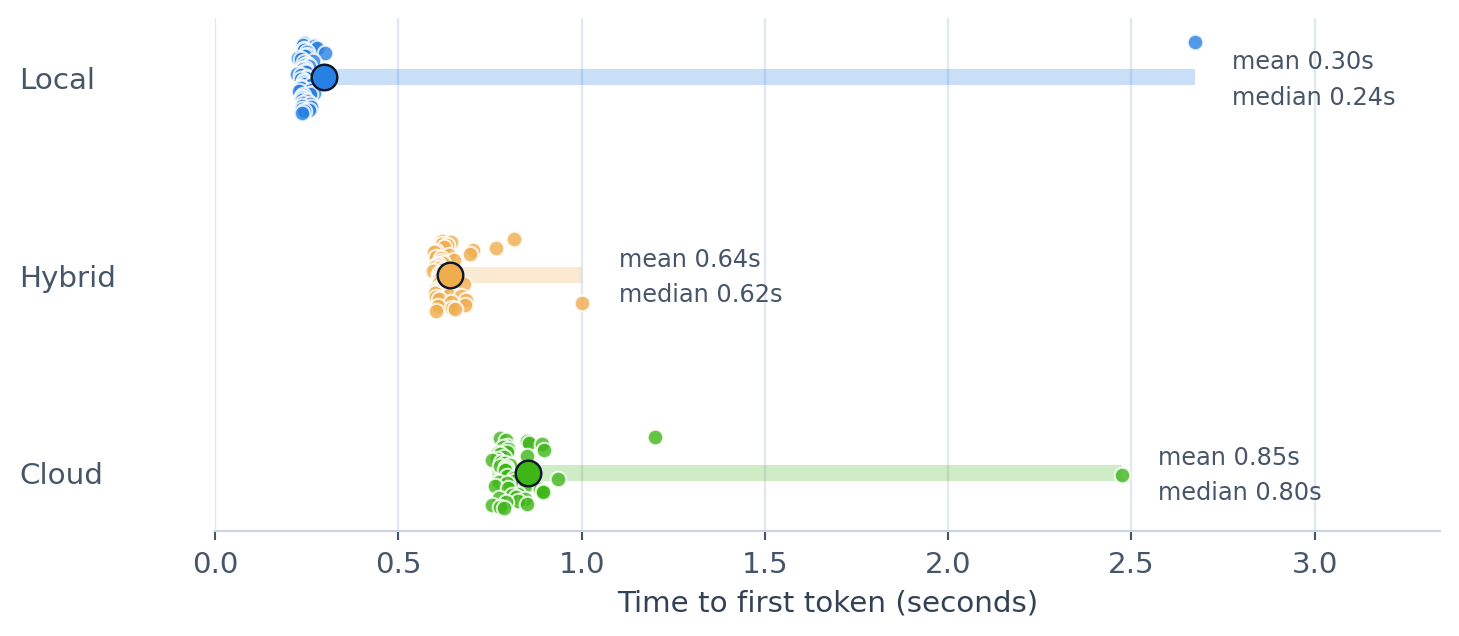
The plot below shows the time to first token across repeated runs for the three modes. I ran each test 50 times. The small dots are the individual runs, the larger dot is the mean and the horizontal band shows the min-to-max spread.
The TTFT for Local mode has an average of 0.30s and a median of 0.24s. The maximum TTFT is high for the first run, which is far slower because it includes the model loading time. Subsequent runs, which benefit from a warm-start, are significantly faster. The first token takes a bit longer to arrive from the Hybrid and Cloud models. This delay can probably be attributed to network and authentication latency. It’s interesting to note that TTFT is consistently higher for the Cloud model than the Hybrid model, suggesting that the local Ollama instance might reduce latency, even when the model is running in the cloud. Possibly (and this is complete conjecture) this is because the local instance is already authenticated as opposed to handling authentication on each request.
Looking at the total generation time (TTFT and the time to generate the rest of the response), the situation is flipped.
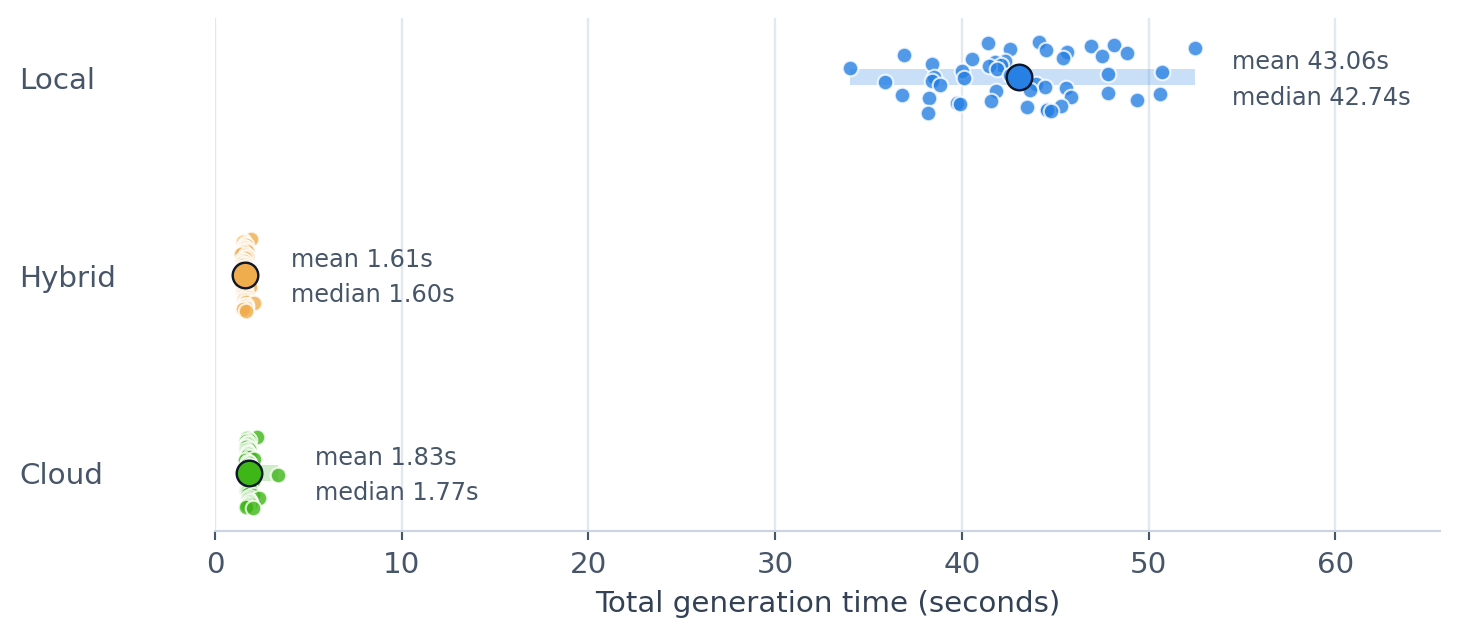
The Local model takes substantially longer to generate the full response, with an average of 43.06s, compared to the Hybrid and Cloud models, which average 1.61s and 1.83s respectively. This makes sense: those models are running on serious hardware! It’s a more useful comparison if you care about end-to-end latency (how long it takes to get the full response) rather than the first visible token (how long it takes to start responding).
Timing is just one factor to consider when choosing between local and cloud models. For what I do timing is certainly important, but the quality of the response is paramount. And here a more capable cloud model is generally better than a small local model, in much the same way that an orchestra tends to outperform a man with a recorder.
What Changes?
At first glance, not much changes. You still type ollama run. You can still hit localhost:11434. Your scripts still look like Ollama scripts.
But “feels local” is not the same thing as “is local”. The useful way to think about Ollama Cloud is to split the stack and ask which of the pieces are still on your machine.
What Stays Local?
For the Hybrid mode, a surprising amount of the workflow remains local:
- the CLI and TUI;
- the API (you’re still talking to
http://localhost:11434); - the auth state (the local Ollama instance is signed into your Ollama account); and
- tooling, scripts, endpoint compatibility and developer experience..
Ollama Cloud preserves the local interface while moving the actual model execution into the cloud.
What Stops Being Local?
The parts that matter operationally are no longer on your machine:
- the model weights;
- the inference compute;
- the request leaves your machine and crosses a network boundary; and
- availability now depends on external factors.
Cost and Limits
Local inference is limited by hardware you already paid for. Cloud inference is limited by a meter.
Free access is genuinely useful: it gives you limited but generous access to cloud models, although you can only run one cloud model at a time.
If you opt for a paid plan then Pro is currently 20 USD per month, with 50x more cloud usage than Free and the ability to run three cloud models simultaneously. The next tier up is Max, which is currently 100 USD per month, with 5x more cloud usage than Pro and you can run ten cloud models simultaneously. These plans might change in the future. Check the pricing page for the latest details.
Privacy
Ollama says its cloud does not retain your data and that neither prompt nor response data is logged or trained on. That’s reassuring, but it’s not the same thing as “never leaves my machine”. That distinction matters because the request still crosses a remote trust boundary.
For many applications that might be fine. For sensitive customer data, regulated workloads or anything that depends on data residency guarantees, I’d still proceed with caution. The CLI being local does not make the data path local.
Offline Use
This is the least subtle boundary. Local models work without the internet. Hybrid and Cloud modes do not. They are not going to work well, or at all, on planes, in hotels or anywhere else with flaky Wi-Fi.
They’re also not going to work if the Ollama servers are having a bad day. A local model can be slow because your hardware is inadequate. A cloud model can be completely unavailable because of problems with the network, account, quota or remote server.
Cloud Models on the Free Plan
Local models are free. In general, cloud models are not. But Ollama provides a selection of cloud models on a free tier. For example:
gpt-oss:120b-cloudgpt-oss:20b-cloudgemma3:4b-cloudgemma4:31b-cloudnemotron-3-super:cloudnemotron-3-ultra:cloudminimax-m2.1:cloudminimax-m2.5:cloudminimax-m3:cloudglm-4.7:cloudandqwen3-coder:480b-cloud.
If in doubt, it’s easy to check. Assuming you’re signed in, just fire off a quick test.
ollama run glm-5.2:cloud "Say OK." --think=falseError: 403 ForbiddenBummer. That model requires a subscription.
ollama run glm-4.7:cloud "Say OK." --think=falseOK.Sweet!
Local Workflow, Remote Brain
Ollama Cloud is not really “local AI” in the strict sense. The workflow is local. The compute is not. And that’s what makes it interesting.
What Ollama has separated is the developer experience of local AI from the operational reality of local AI. You still type ollama run. You can still talk to localhost:11434. Your existing code keeps working. But the trust boundary has moved, the offline guarantee has gone away and the model is no longer in the room.
That’s the real value of Ollama Cloud. It’s not a replacement for local models. It’s a pressure valve for the moment when local tooling is still what you want but local hardware is no longer enough.
My rule of thumb is simple: stay fully local when privacy, offline use or predictable control matter most. Use Ollama Cloud when you want to keep the local workflow but need to outsource the brain.
If you want more details on using Ollama Cloud take a look at the Ollama Cloud docs. For a list of Ollama Cloud models, see the Ollama cloud model catalogue or check out my Ollama Atlas post.