If cannabis is a gateway drug, then Ollama is a gateway LLM runtime. You start with ollama run llama3 and two weeks later you’re compiling llama.cpp from source and arguing about quantisation formats with strangers on GitHub.
What is Ollama?
Ollama is a local LLM runtime that handles model downloading, configuration and execution. It provides TUI chat and an API. It’s the quickest and easiest ways to get a local LLM running without having to think too much about the underlying hardware or infrastructure.
Setup
Installing Ollama is simple: just download and run a shell script.
curl -fsSL https://ollama.com/install.sh | sh>>> Installing ollama to /usr/local
>>> Downloading ollama-linux-amd64.tar.zst
>>> Adding ollama user to render group...
>>> Adding ollama user to video group...
>>> Adding current user to ollama group...
>>> Creating ollama systemd service...
>>> Enabling and starting ollama service...
>>> The Ollama API is now available at 127.0.0.1:11434.
>>> Install complete. Run "ollama" from the command line.💡 Ollama publishes updates fairly frequently. To update to the latest version simply run the installer script again.
When the install finishes, check that ollama runs.
ollama --versionollama version is 0.32.15Your version will likely be different, but provided you see something like that you’re in good shape.
If granting sudo access to a downloaded script gives you an acute sense of anxiety (and there are good reasons that it should!) then you could alternatively download a precompiled binary archive from the releases page. There’s also a Docker image.
Working with Models
Using a local model with Ollama is normally a three-step process:
- Pull the model.
- Run the model.
- Interact with the model via the chat or API.
Pull
Choosing an appropriate model is often one of the biggest challenges to getting started. I recently wrote about llmfit, a tool for finding models that will run on specific hardware. Alternatively you can simply browse the Ollama model catalog. Either start with a small model from the catalog or use llmfit for guidance!
You download a model by running ollama pull.
# Pull the default/latest version of a model.
ollama pull llama3
# Pull a specific model size.
ollama pull llama3:8b
You really only need to run ollama pull if you don’t intend to immediately run the model. Otherwise attempting to run a model that has not already been downloaded will automatically initiate a download.
List
To see a list of downloaded models use ollama ls or ollama list.
ollama lsNAME ID SIZE MODIFIED
starcoder:7b 53fdbc3a2006 4.3 GB About a minute ago
starcoder:3b 847e5a7aa26f 1.8 GB 4 minutes ago
starcoder:1b 77e6c46054d9 726 MB 9 minutes ago
glm4:latest 5b699761eca5 5.5 GB 7 hours ago
llama3:latest 365c0bd3c000 4.7 GB 2 days agoEach model has a unique hexadecimal identifier, along with its size and when it was downloaded. A model can also have multiple versions: I have downloaded three versions of the starcoder model denoted 1b, 3b and 7b (the name indicates the number of model parameters). Use this naming convention with ollama pull to download a specific version of a model. If you don’t provide an explicit version then you’ll get the latest (default) version.
Remove
Models take up a decent chunk of disk space. You can delete a local copy of a model using ollama rm, secure in the knowledge that you can always download it again later.
# Remove the :latest version.
ollama rm glm4
# Remove a specific version.
ollama rm starcoder:7b
Run
If you want to chat with a model then use ollama run and provide a model name. The command kicks off a series of actions:
- Check if the model has been downloaded. If not, then implicitly run
ollama pull. - Load the model into memory.
- Start an interactive REPL.
- Keep the model in memory for a short while after you have exited the REPL.
Let’s run the llama3 model.
ollama run llama3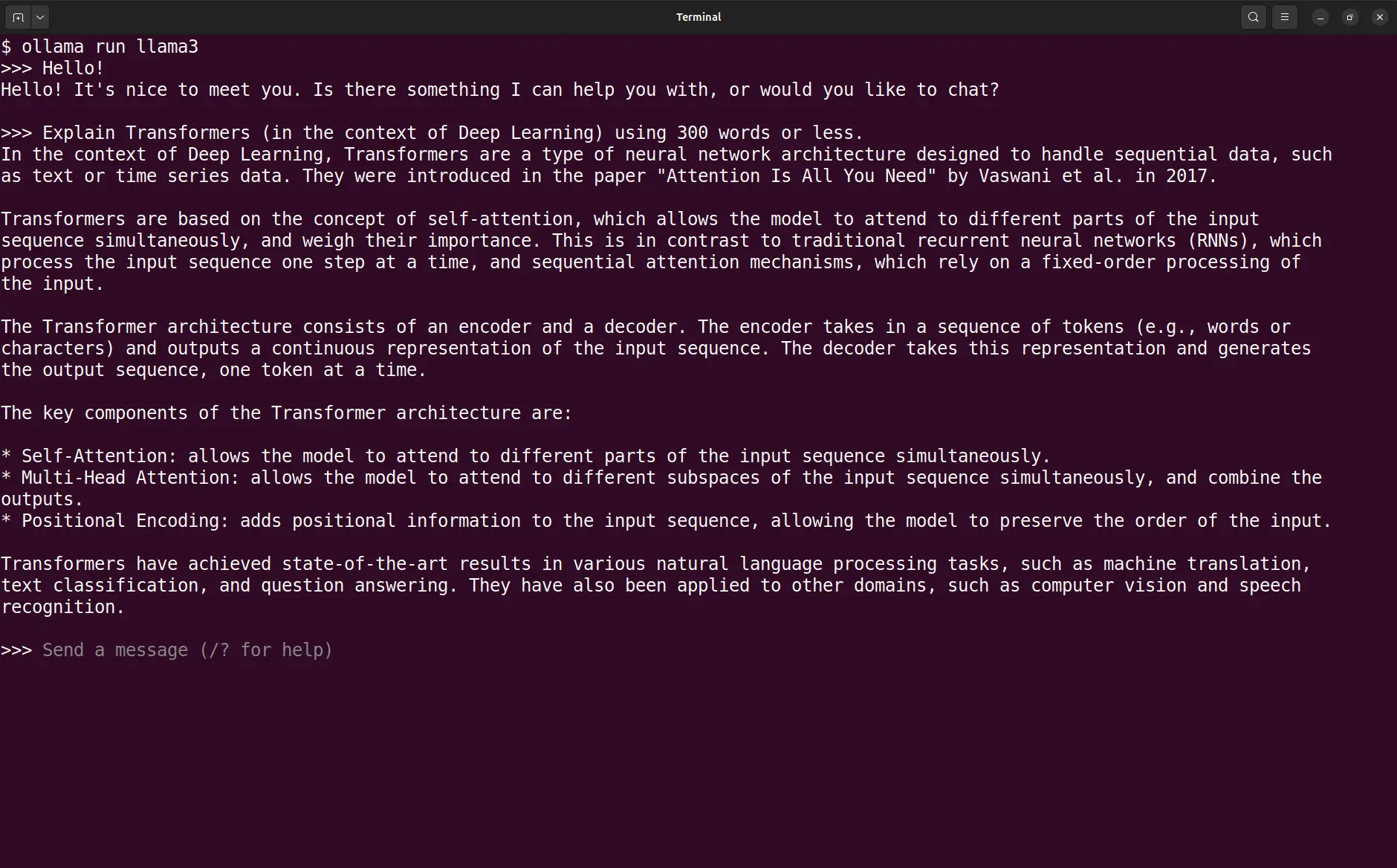
llama3 via the Ollama Chat REPL.You can use the ollama ps command to check which models are currently active.
ollama psNAME ID SIZE PROCESSOR CONTEXT UNTIL
llama3:latest 365c0bd3c000 5.3 GB 100% CPU 4096 About a minute from nowEnvironment
Ollama consists of a server and a client. Normally the server runs automatically in the background, accepting requests from the client. This works right out of the box because the Ollama server is set up to run as a systemd service. It’s always on, idling in the background and waiting for work. That makes complete sense on a machine where Ollama models are being used frequently.
You can temporarily stop the background Ollama server process. When you next restart your machine the server will start again.
# Temporarily stop/start the Ollama service.
sudo systemctl stop ollama
sudo systemctl start ollama
Or you can make the change persistent.
# Whether Ollama service starts at boot.
sudo systemctl disable ollama
sudo systemctl enable ollama
You can check the current status of the Ollama service at any time.
systemctl status ollamaCan you still run models if Ollama isn’t running as a service? Yes, you can. But you need to manually launch the server. Nothing happens unless the server is running.
ollama serveI generally do this in a tmux session.
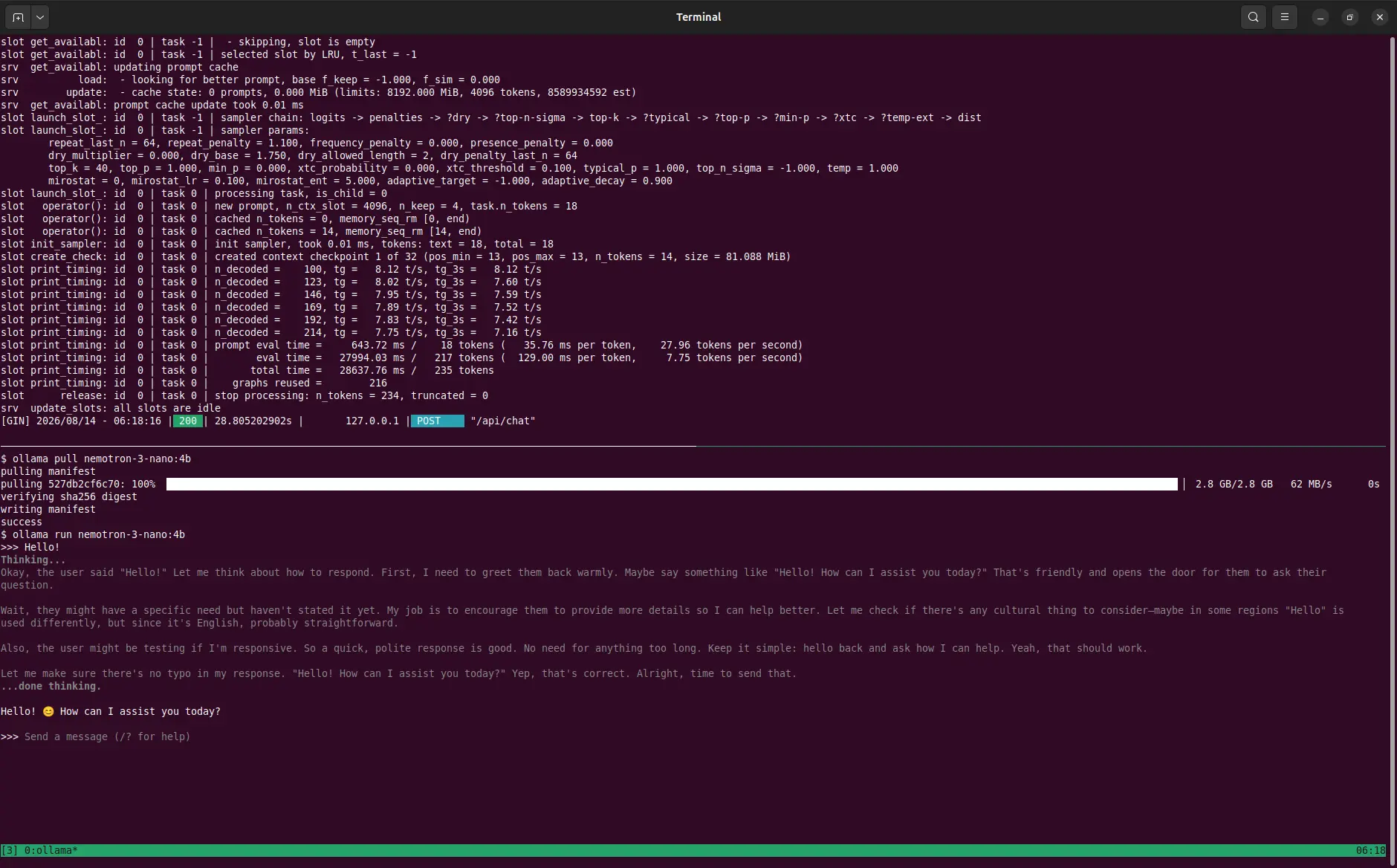
tmux session with ollama serve in the top
panel and ollama pull and ollama run in the
bottom panel.One thing that I like about running the server in the foreground is that I can see all of the activity generated by interacting with a model. It’s logging porn and I’m an addict.
I’m not too concerned about having Ollama running as a background service. When idle, its resource footprint is negligible. However, there’s one good reason not to run it as a service: you can have control over where the models are stored!
By default Ollama models are stashed in /usr/share/ollama/.ollama/models. I normally set up my machines with separate / (root) and /home (user) partitions, where the majority of the space is allocated to users and the root partition has just enough space to comfortably accommodate the operating system and applications. The default location for Ollama models puts them onto the root partition. And those models can be chunky, which means that they quickly exhaust the space on that partition. That quickly brings my machine to its knees. It also restricts the number and size of models that I can download. I’d like to have the models in the user partition where there’s lot of space.
Choosing Model Location
If you run the Ollama server manually then you can use the OLLAMA_MODELS environment variable to specify where models should be downloaded.
export OLLAMA_MODELS="$HOME/.ollama/models"I add this to my ~/.bashrc, setting the location as ~/.ollama/ so that the model files reside in my account. You need to manually restart the server in the same environment for this variable to take effect.
Other Environment Settings
There are a number of other environment variables. I’ve never had reason to tinker with most of them. However, there are a few that are worth knowing about.
The OLLAMA_HOST environment variable can be used to set the host and port for the Ollama API (more about this in a moment). You can use this to change the API’s port in the unlikely event that there’s something else running on port 11434.
export OLLAMA_HOST="127.0.0.1:12500"If you are exposing the server to external connections then you’d set the host IP to 0.0.0.0. 🚨 Think carefully about this because unless you take suitable precautions (firewall, authenticated reverse proxy or SSH tunnel) you’ll expose your Ollama server to everyone!
Some others that are useful on a CPU-only machine:
OLLAMA_KEEP_ALIVE— By default the server keeps a model in memory for 5 minutes after you stop using it. This just makes it more responsive should you want to use it again shortly thereafter. U this variable to make this period longer or shorter.OLLAMA_MAX_LOADED_MODELS— Limit the number of models that Ollama has loaded at any one time. Indispensable if you have limited memory!
API
The Ollama API serves three sets of endpoints:
- a native API
- an OpenAI-compatible API and
- an Anthropic-compatible API.
By default the API is served at http://localhost:11434/.
Native Ollama Endpoints
The native API lives under the /api/ path and provides specific Ollama features.
Text Generation & Chat
The native API has a couple of endpoints for interacting directly with models:
/api/generateand/api/chat.
Generate a response from a single prompt.
curl http://localhost:11434/api/generate --data '{
  "model": "llama3",
  "prompt": "Explain quantisation in one sentence.",
  "stream": false
}'
The --data (or -d) argument specifies the payload sent to the model. It’s implicitly a POST request because a payload is supplied.
Initiate a multi-turn chat.
curl http://localhost:11434/api/chat -d '{
  "model": "llama3",
  "messages": [
    { "role": "user", "content": "Tell me about quantisation." }
  ],
  "stream": false
}'
The chat endpoint is stateless, which means that the responsibility for maintaining the chat history lies with the client rather than the server.
Both of these endpoints support a format parameter that allows you to specify the structure of the response.
curl http://localhost:11434/api/generate -d '{
  "model": "llama3",
  "prompt": "The forecast is 18 °C, 65% humidity, 22 km/h wind and 30% chance of rain.",
  "format": {
    "type": "object",
    "properties": {
      "temperature": { "type": "number" },
      "humidity": { "type": "number" },
      "wind": { "type": "number" },
      "rain": { "type": "number" }
    },
    "required": ["temperature", "humidity", "wind", "rain"]
  },
  "stream": false
}' | jq -r '.response' | jq .
Use jq to parse and format the result.
{
  "temperature": 18,
  "humidity": 65,
  "wind": 22,
  "rain": 30
}
Toolbox
There are also endpoints that mirror CLI commands:
/api/pull/api/create/api/tags/api/show/api/ps- and many others.
To list the downloaded models:
curl http://localhost:11434/api/tags{
"models": [
{
"name": "llama3:latest",
"model": "llama3:latest",
"modified_at": "2026-08-21T11:42:46.567498067+01:00",
"size": 4661224676,
"digest": "365c0bd3c000a25d28ddbf732fe1c6add414de7275464c4e4d1c3b5fcb5d8ad1",
"details": {
"parent_model": "",
"format": "gguf",
"family": "llama",
"families": [
"llama"
],
"parameter_size": "8.0B",
"quantization_level": "Q4_0",
"context_length": 8192,
"embedding_length": 4096
},
"capabilities": [
"completion"
]
}
]
}And to get more information on a specific model:
curl http://localhost:11434/api/show -d '{"model": "llama3"}'These are useful if you need to interact with Ollama programmatically. However, for day-to-day operations it makes more sense to simply use the CLI.
OpenAI-Compatible Endpoints
The Ollama API is compatible with parts of the OpenAI API, which allows it to be easily used by other applications which implement this specification.
Try it out by initiating the same chat we did earlier via the native API.
curl http://localhost:11434/v1/chat/completions -d '{
  "model": "llama3",
  "messages": [
    { "role": "user", "content": "Tell me about quantisation." }
  ]
}'
Although you can interact with the API directly, if you’re working in Python then it’d make more sense to use the openai package.
from openai import OpenAI

client = OpenAI(
    base_url='http://localhost:11434/v1/',
    api_key='ollama',
)
The api_key parameter is required but ignored.
Anthropic-Compatible Endpoints
Ollama also provides compatibility with the Anthropic Messages API.
curl -X POST http://localhost:11434/v1/messages -d '{
  "model": "llama3",
  "max_tokens": 1024,
  "messages": [
    { "role": "user", "content": "Tell me about quantisation." }
  ]
}'
You could also simply use the anthropic package for Python.
from anthropic import Anthropic

client = Anthropic(
    base_url='http://localhost:11434',
    api_key='ollama',
)
Agents
Can you use local Ollama models with agents? You most certainly can! But you’ll need a model that supports tool calling (and that’s something that llama3 doesn’t do). Let’s grab a model from Ornith and glm-4.7-flash from Zhipu AI.
ollama pull ornith
ollama pull glm-4.7-flash
For the purpose of demonstration I’ll use OpenCode. Edit the OpenCode configuration file, ~/.config/opencode/opencode.json, adding a model entry for the downloaded ornith model.
{
  "$schema": "https://opencode.ai/config.json",
  "provider": {
    "ollama": {
      "npm": "@ai-sdk/openai-compatible",
      "name": "Ollama (local)",
      "options": {
        "baseURL": "http://localhost:11434/v1"
      },
      "models": {
        "ornith": {}
      }
    }
  }
}
Start opencode and select the local ornith model. Voila!
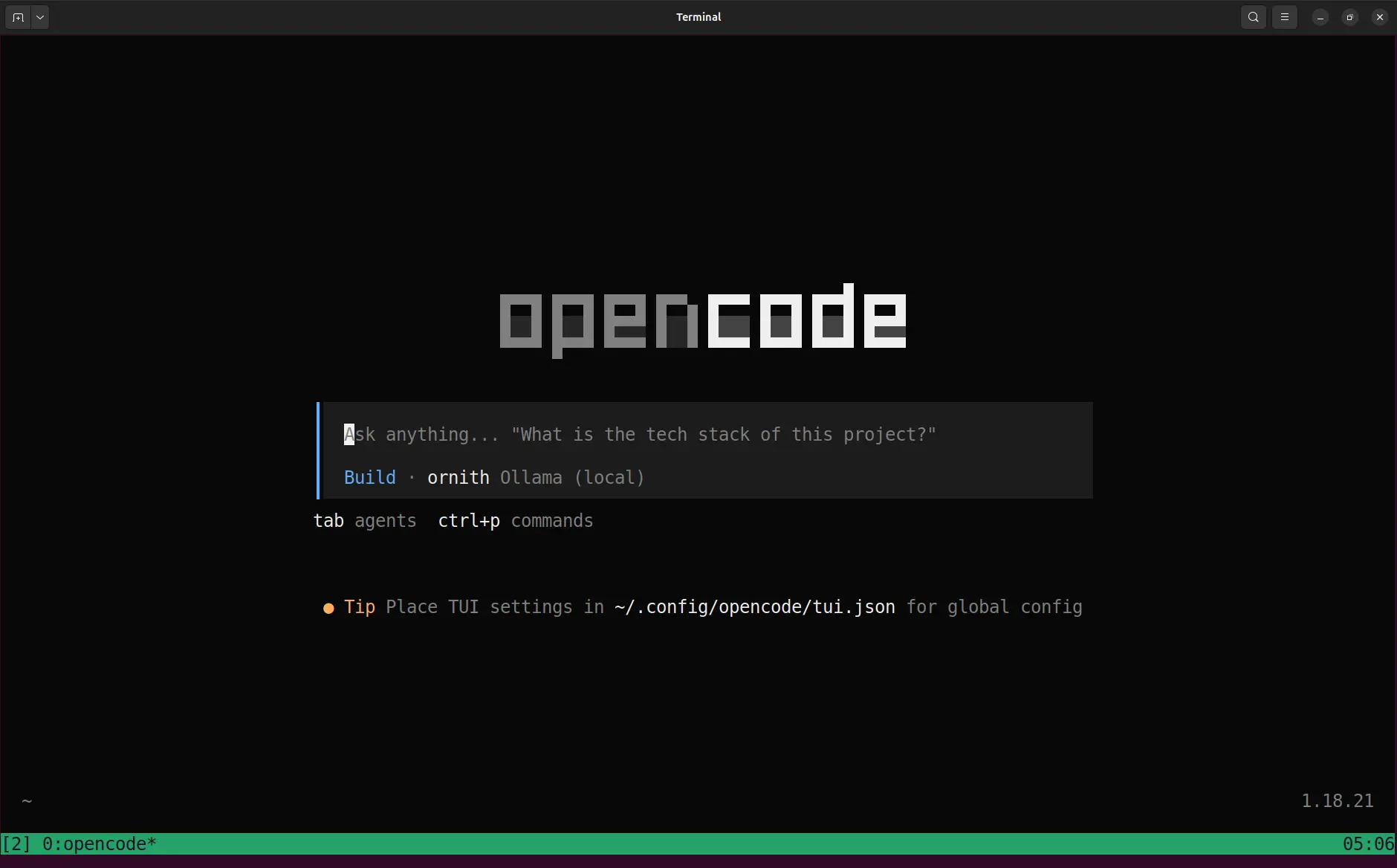
On my machine it’s not fast. I wouldn’t even call it “responsive”. Actually, it’s painfully slow because the model is running exclusively on the CPU. But I have a complete local agentic setup. And that’s pretty damn cool.
Integrations
There are a number of integrations that make it trivially easy to use other services on top of Ollama. There’s support for
- Claude Code
- Codex
- OpenCode (the easy way this time !)
- OpenClaw
- Hermes Agent and
- many others.
Use ollama launch to launch a service. To spin up Codex using Ollama rather than the OpenAI API:
ollama launch codexFirst you’ll need to choose which Ollama model to use from a list of suitable cloud and local models.
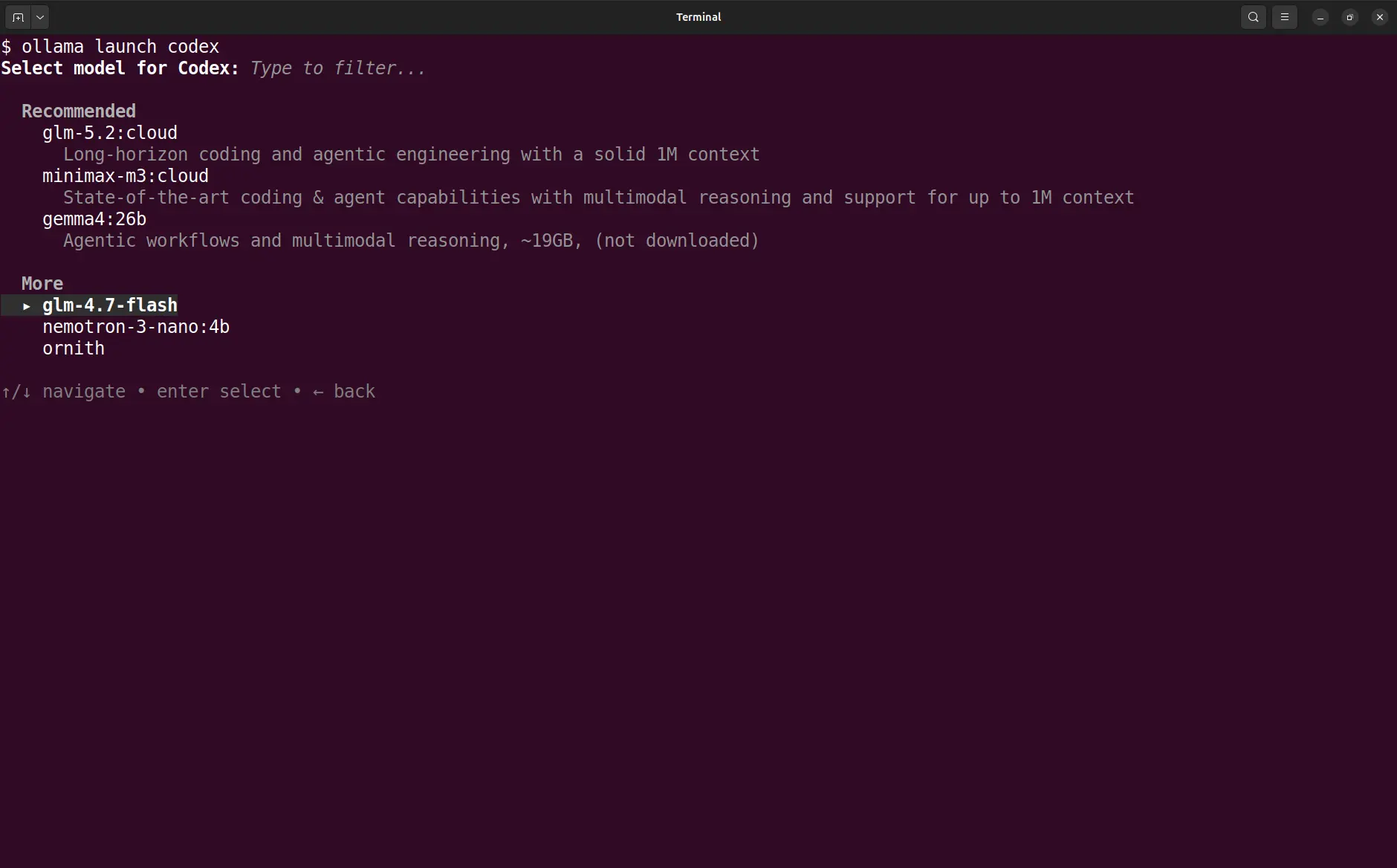
And then you’ll drop into a Codex session. Manage your expectations according to the model you’re running and the specifications of your hardware!
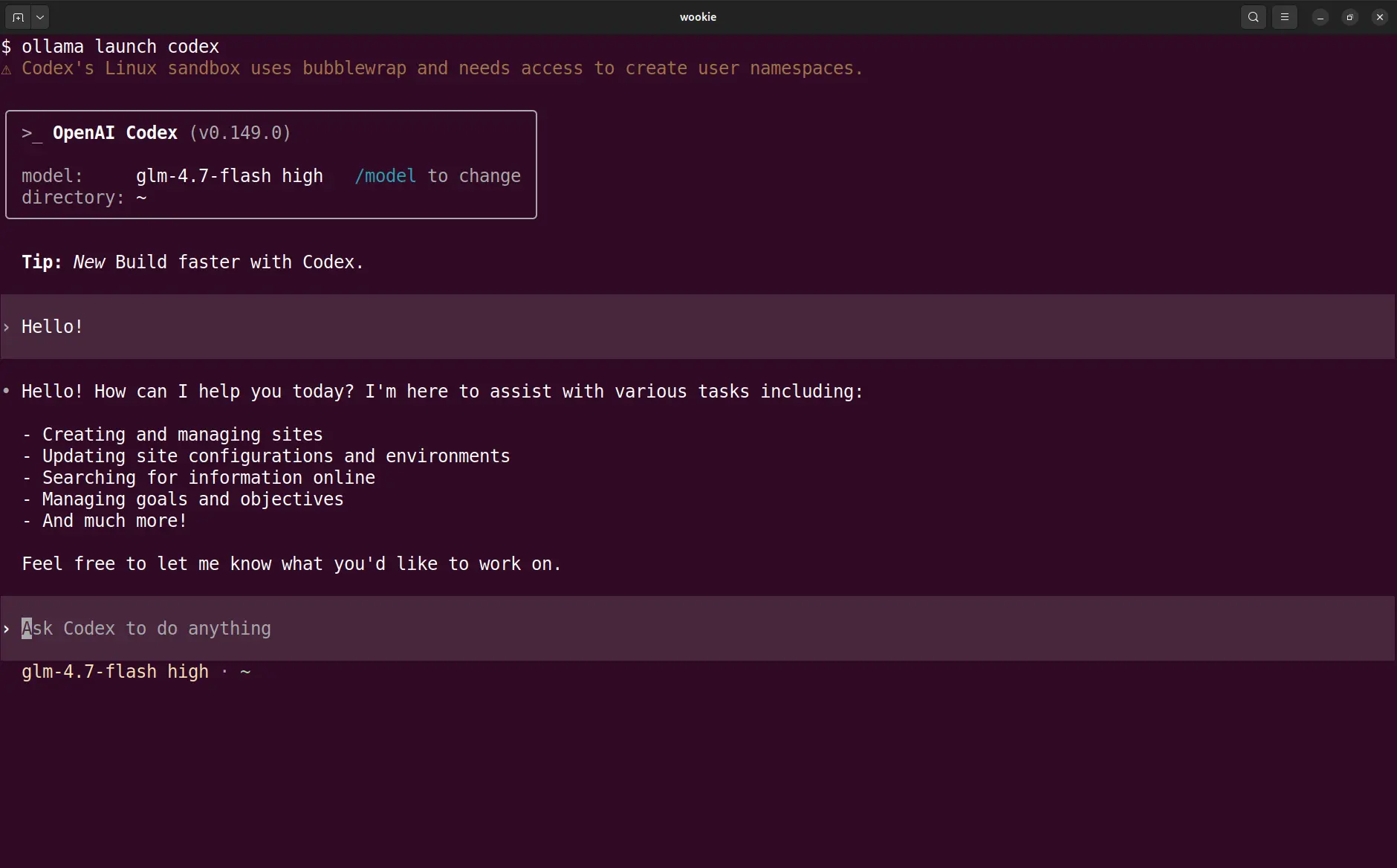
Voila! 🚀 Codex running with a local Ollama model. For me it’s slow. But it’s slow and free!
Ollama Cloud
If you’ve spent any time browsing the Ollama model catalog then you might have noticed that some models are tagged with “cloud”. Those models are served on Ollama’s infrastructure. But the beauty of the implementation is that you access the cloud models as if they were running locally: same CLI and same API.
To access Ollama Cloud you need to create an account and then login.
ollama signinThat’ll open a page in your browser. Hit the big Connect button.
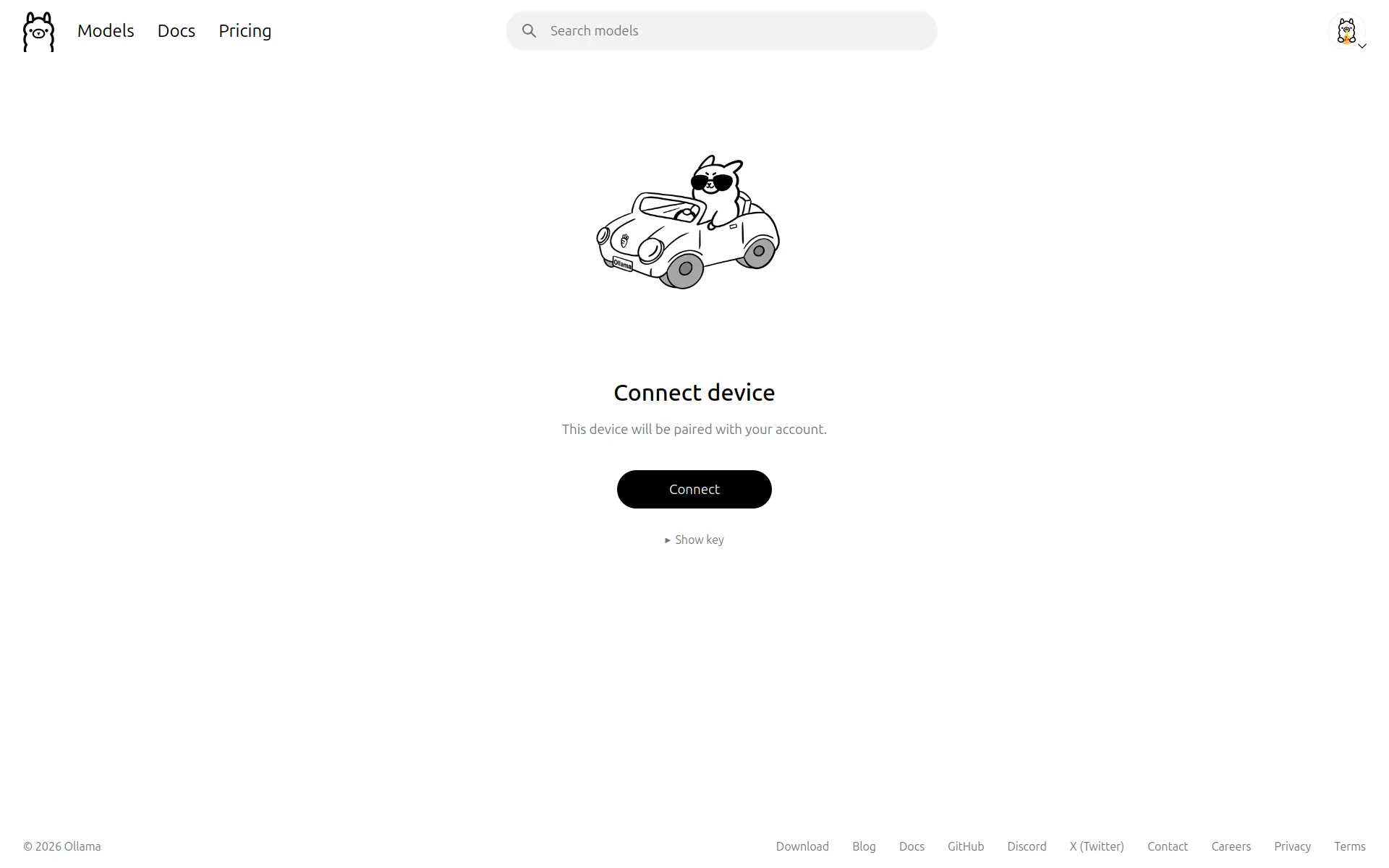
You still need to pull a cloud model, but this doesn’t actually download the model. It essentially just creates a placeholder that links to the cloud model.
ollama pull gemma4:cloudIf you run ollama ls then you’ll see that gemma4:cloud has been added to the list of models but that it has no size. It’s simply a placeholder.
All capabilities supported by a local Ollama model are also available via the Ollama Cloud model.
ollama run gemma4:cloud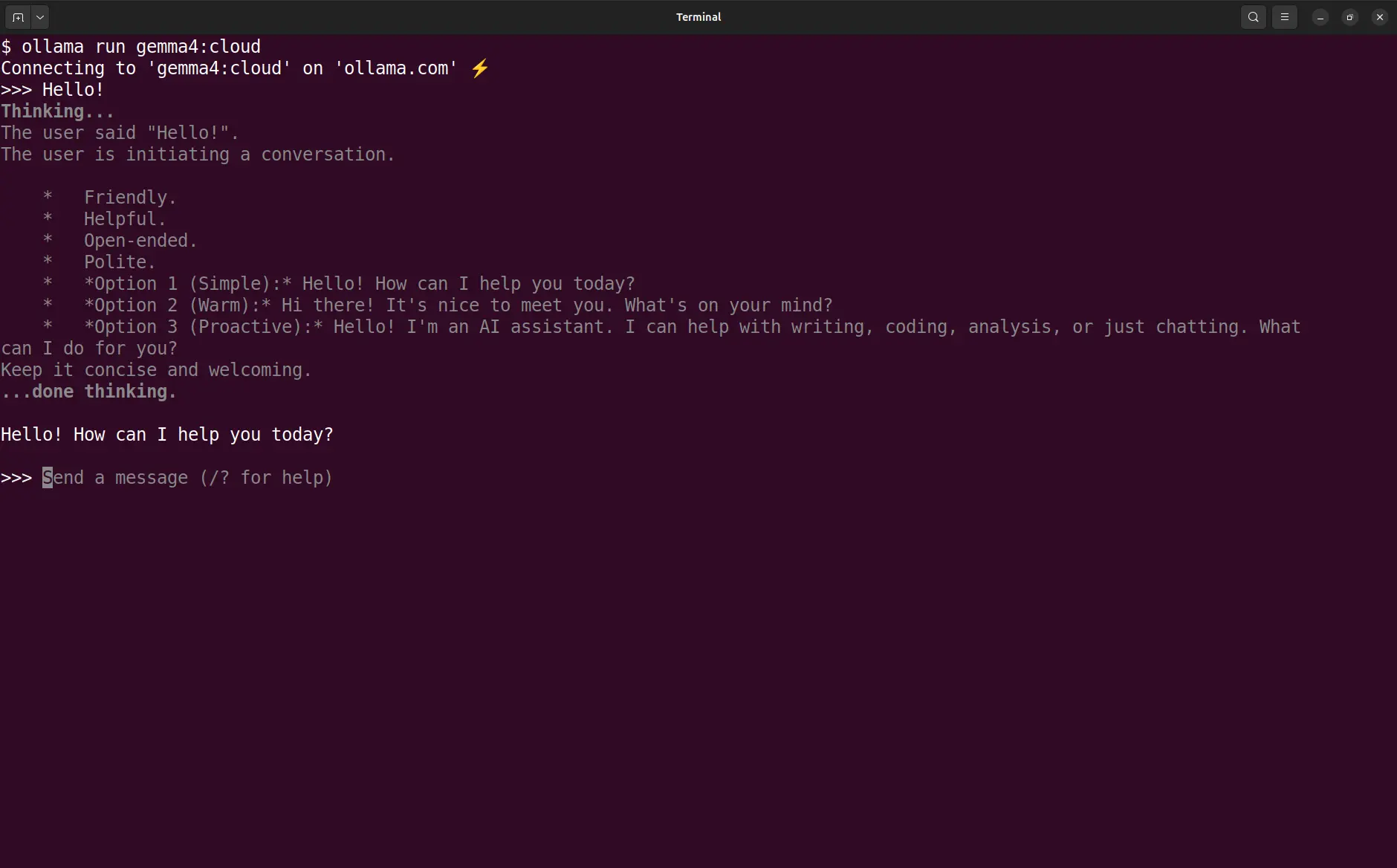
gemma4 on Ollama Cloud using the Chat
REPL.Whereas no quota applies to a local model there are some constraints with cloud models. If you’re on the Free plan then you have access to “light” usage. Subscribing to either the Pro or Max premium plans will give you progressively more capacity. All of the plans have session (currently reset every 5 hours) and weekly (reset every 7 days) limits. I have a couple of automated jobs that are running happily every few hours on a Free plan.
When you’re done you can logout. But if you don’t crave that level of closure, then you can just stay logged in.
ollama signoutOllama Cloud is very handy. It’s important to be aware that by using it you’re sacrificing some of the benefits of a local model (privacy and usage limits). But if you don’t have suitable hardware to run local models, then Ollama Cloud is a good alternative.
Local Workbench
Ollama is ideal for getting started with local inference. It’s easy to install and you can go from zero to a running model in minutes. Although hardware will determine model size and performance, Ollama will work with whatever hardware is available. It provides a chat interface as well as an API, and there’s an extensive catalog of models with sizes extending from cute and scrappy to towering and formidable.
If you want to serve big models in production then Ollama might not be the right choice. But for local work, especially with smaller models, it’s brilliant.
Some features of Ollama that I haven’t mentioned but are worth checking out:
- it works seamlessly with Claude Desktop;
- it supports sub-agents and web search in Claude Code;
- an integration for OpenClaw.