llmfit catalogue.
Do you spend an inordinate amount of time figuring out which AI models you can run on your hardware? I do. And I know I’m not alone. It’s probably the biggest source of friction with using local models. Being able to simply find a model that performs well on your rig is likely worth more than squeezing out another few places on an arbitrary leaderboard.
The process of finding the “right” model can be long and tedious. Typically it involves numerous iterations of a cycle like this:
The problem isn’t the models. It’s the fact that you have specific hardware (CPU, GPU, RAM, VRAM, disk space etc.) and that the model needs to fit comfortably into that hardware. With experience it’s possible to know whether or not a model will be suitable for your rig. In the absence of experience you can work it out by hand. Instructive to do that once or twice. But it quickly becomes laborious. I have neither the experience nor the patience.
Enter llmfit, which attempts to answer (sometimes approximately) the question “Will this model run here?”. It analyses your hardware, compares it with a catalogue of model requirements and benchmark results, then scores and ranks the models, giving you a ranked shortlist that have a reasonable chance of working. Model scoring is done via an embedded database rather than trying to spin up local model candidates.
Be warned though: it’s not a panacea. Results should be treated as likely candidates. Inspect the selected format, runtime and context length, then run the model and benchmark it on the actual machine. My tests below show why that final step matters.
Let’s kick the tyres.
Download and run a shell script to install the latest binary release.
curl -fsSL https://llmfit.axjns.dev/install.sh | shAlternatively, you could use Homebrew, something that I didn’t know was even possible on Linux until recently.
brew install llmfitAnother option (if you have time to burn) is to build from the Rust source.
cargo install llmfitI tried each of these modes and on some platforms (notably Google Colab) I ran into dependency issues. The installer script worked everywhere.
Whichever route you choose, you should end up with a working executable. Let’s check that.
# Check the installed version (your version will very likely differ!).
llmfit --version
llmfit 1.1.9llmfit runs in two modes: interactively via a Text User Interface (TUI) or programmatically using a Command Line Interface (CLI).
We’ll start with the TUI because this gives an immediate and intuitive view of models that fit on a specific piece of hardware.
# Launch the TUI.
llmfitThis is what I see on my laptop.
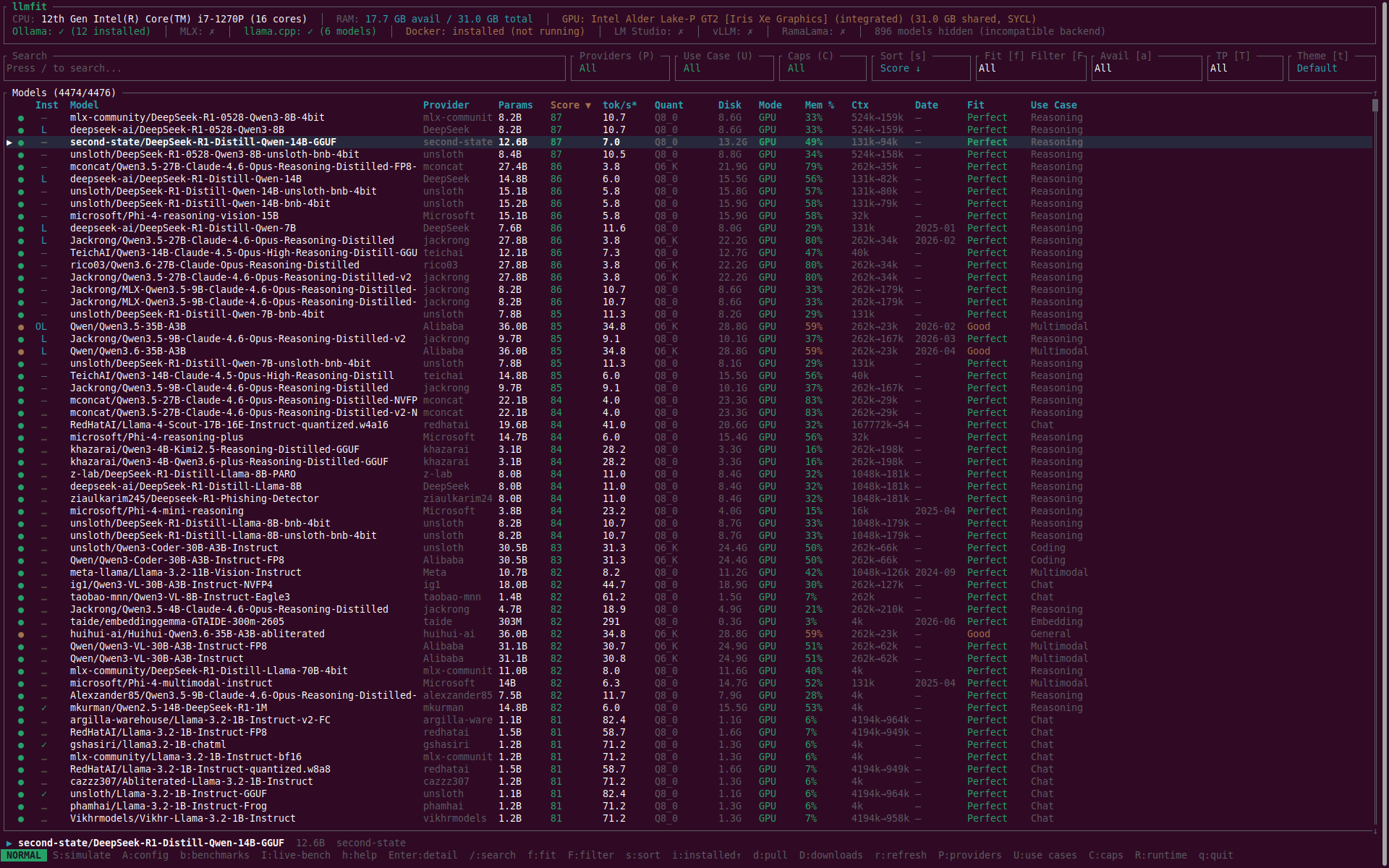
My laptop is a Lenovo ThinkPad X13 with an Intel Alder Lake-P GT2 integrated GPU. Not the ideal system for running local inference because the GPU only has shared memory (no dedicated VRAM) and uses SYCL rather than CUDA. llmfit still works: it isn’t restricted to NVIDIA GPUs. It also picks up that I have both Ollama and llama.cpp backends installed.
The selection of viable models is encouraging. The number of models in the llmfit database has improved dramatically since I first looked, which was just after the project launched. At that time there were very few models that could run comfortably on my machine. Now it seems that there are loads. There are even a few Mixture of Experts (MoE) models (like Qwen/Qwen3.6-35B-A3B) in the list.
Somewhat less ambitious than Qwen/Qwen3.6-35B-A3B, llmfit also indicates that I could run the Q8_0 quantisation of Qwen/Qwen3-8B. I tried unsloth/Qwen3-8B-GGUF:Q4_K_M and it worked! What about the Q8_0 GGUF?
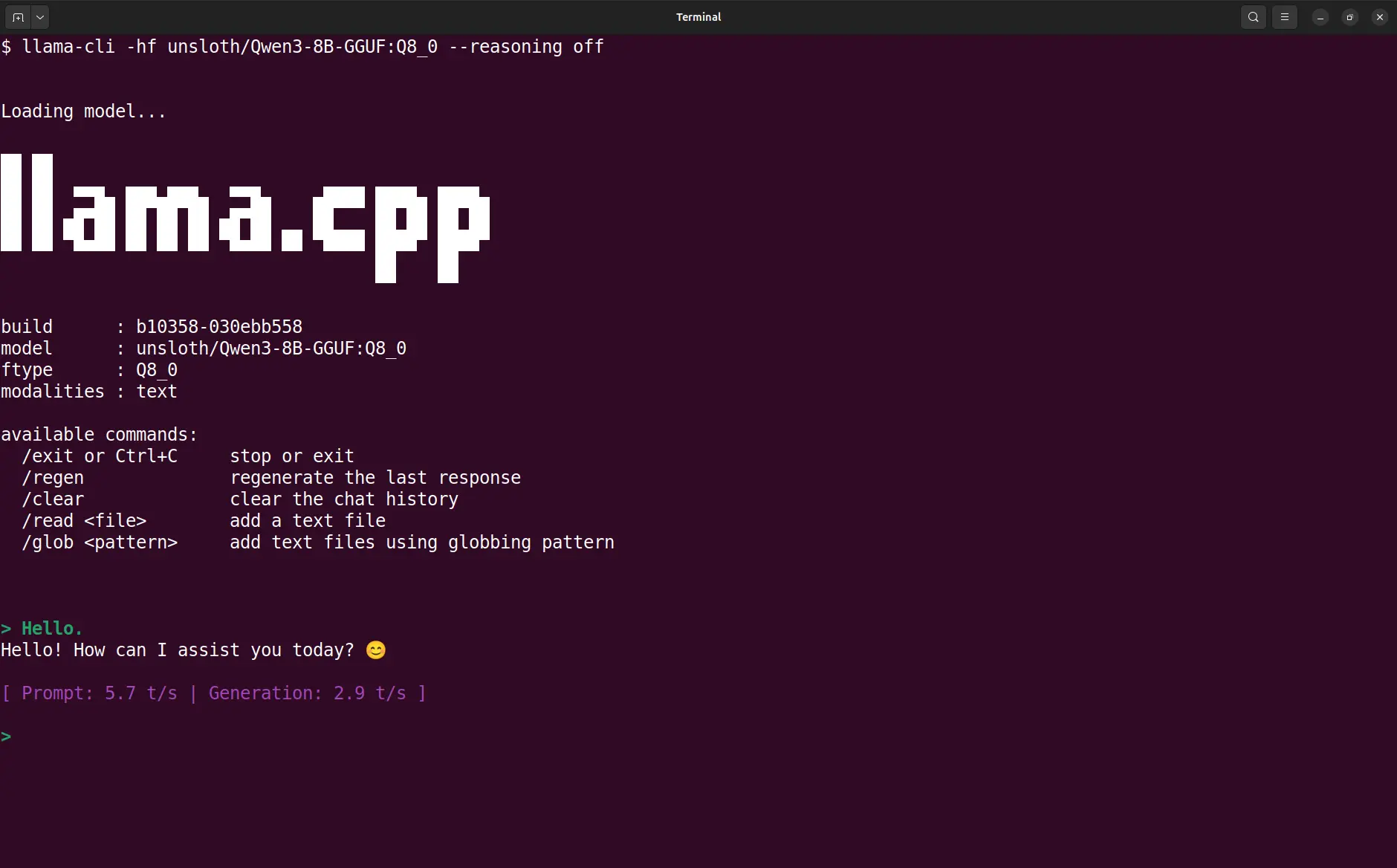
unsloth/Qwen3-8B-GGUF:Q8_0.Confirmed, it works! The Q8_0 quantisation works too. 🚀
I recently dabbled with running LLMs on an NVIDIA T4 GPU using a g4dn.xlarge EC2 instance. This is what llmfit shows on that machine.
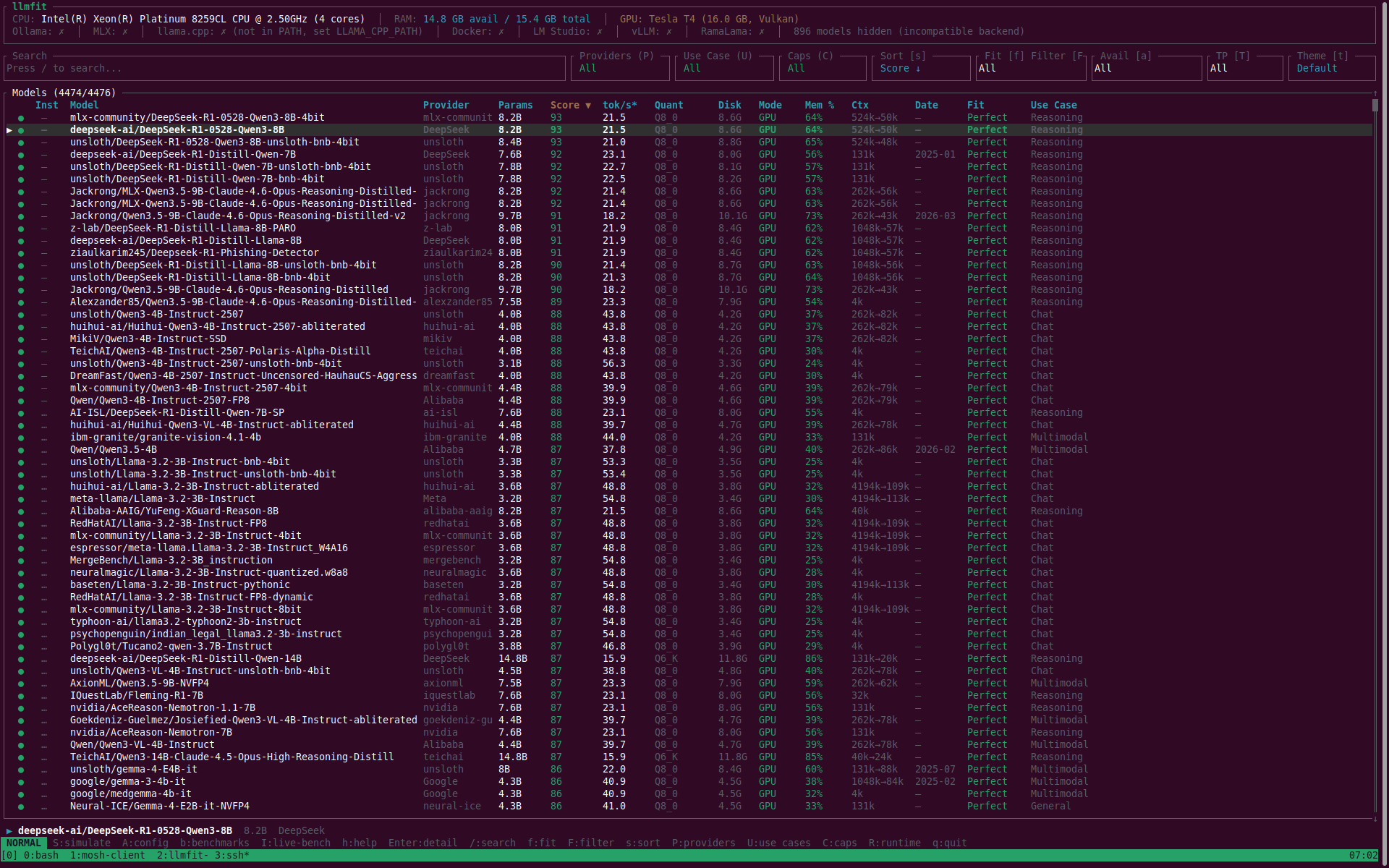
It didn’t detect a runtime (it was a fresh instance and a basic Ubuntu AMI without CUDA installed). llmfit did pick up the GPU hardware, but via Vulkan rather than CUDA. The highest scoring models were similar to those for my laptop, which is interesting given the substantial differences in hardware. However, the predicted tokens per second for those models was twice as high with the T4.
I’ve also looked at running LLMs on Google Colab. Which models did llmfit consider suitable there? I used Colab’s NVIDIA T4 hardware configuration, so I expect that the output should be similar to the g4dn.xlarge.
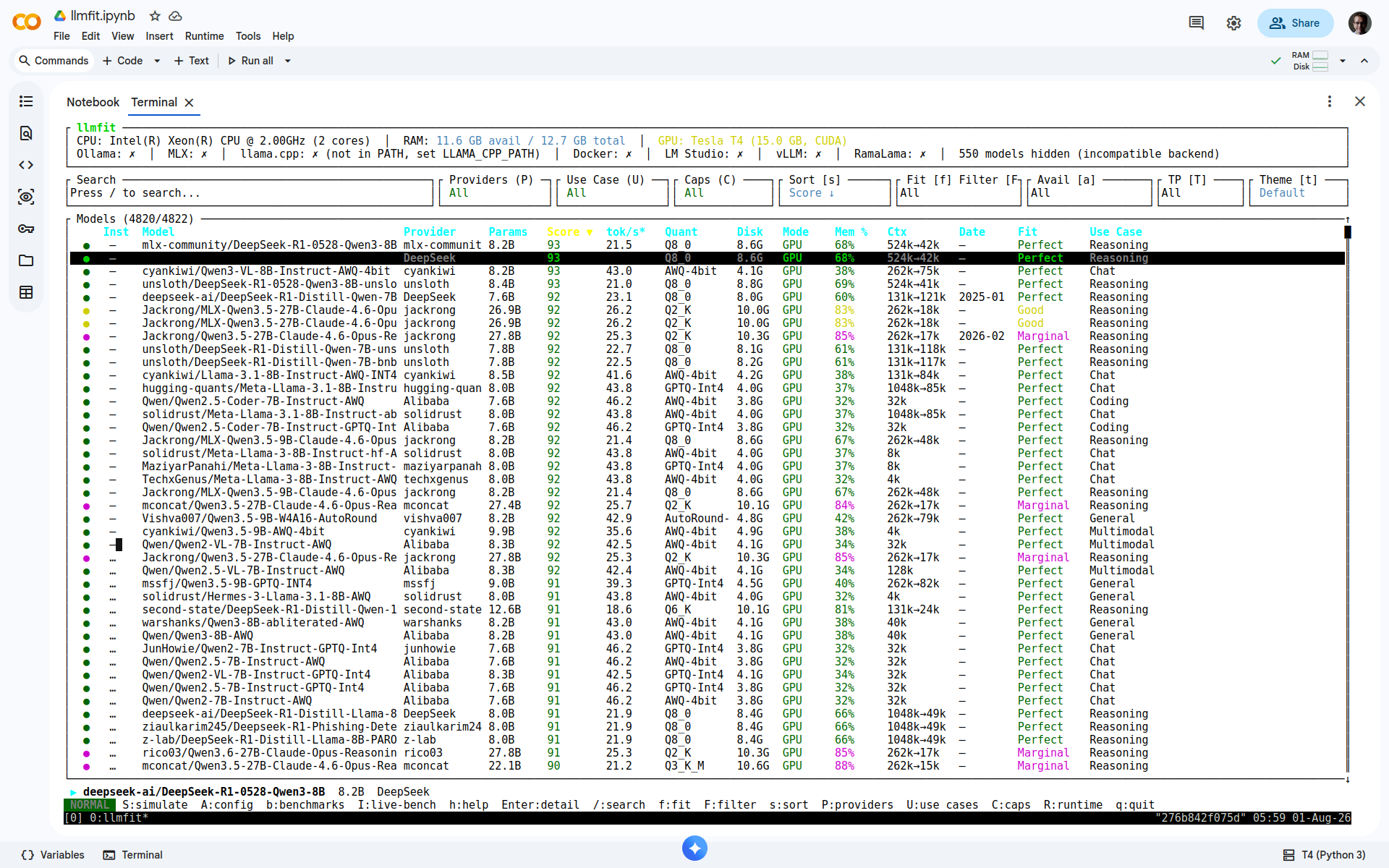
However, what I see varies from my expectations: Colab accommodates a roughly similar selection of models, but there’s really only an overlap of around 25% between the two listings. There are a few factors that I used to rationalise the divergence:
g4dn.xlarge. They share the same type of GPU, but Colab’s T4 is on a smaller VM.g4dn.xlarge Vulkan was identified as the compute backend (no CUDA installed), while on Colab llmfit picks up CUDA.llmfit is working from 4822 models, while on the g4dn.xlarge it only has 4476 models. The underlying model catalogue is the same in both cases, but it’s filtered according to the compute backend.Regardless, a nice set of candidate models. In theory. Let’s check if one of them works. Since I tried Qwen/Qwen3-8B-GGUF on my laptop I’ll attempt Qwen/Qwen3-8B-AWQ on Colab. I downloaded the model and tried to serve it with vLLM.
vllm serve Qwen/Qwen3-8B-AWQAlthough llmfit estimated a memory consumption of just 38%, that broke with an OOM error indicating that it was unable to load both the model and the KV cache. I checked the model config.json to confirm that I got the recommended AWQ 4-bit artefact, filtering out the relevant portion of the file with jq.
jq '.quantization_config | {bits, quant_method}' config.json{
"bits": 4,
"quant_method": "awq"
}Yeah, that looks right. I’ll add some constraints and try again, only allowing a memory budget of 85% of VRAM and limiting the context length to 32768 tokens.
vllm serve Qwen/Qwen3-8B-AWQ \
  --gpu-memory-utilization 0.85 --max-model-len 32768
The Qwen/Qwen3-8B-AWQ model card describes a native 32768-token context, but config.json sets max_position_embeddings to 40960, allowing 8192 prompt tokens alongside up to 32768 generated tokens. Setting --max-model-len 32768 caps the total context length at 32768 tokens, reducing the reserved KV-cache budget by 20%.
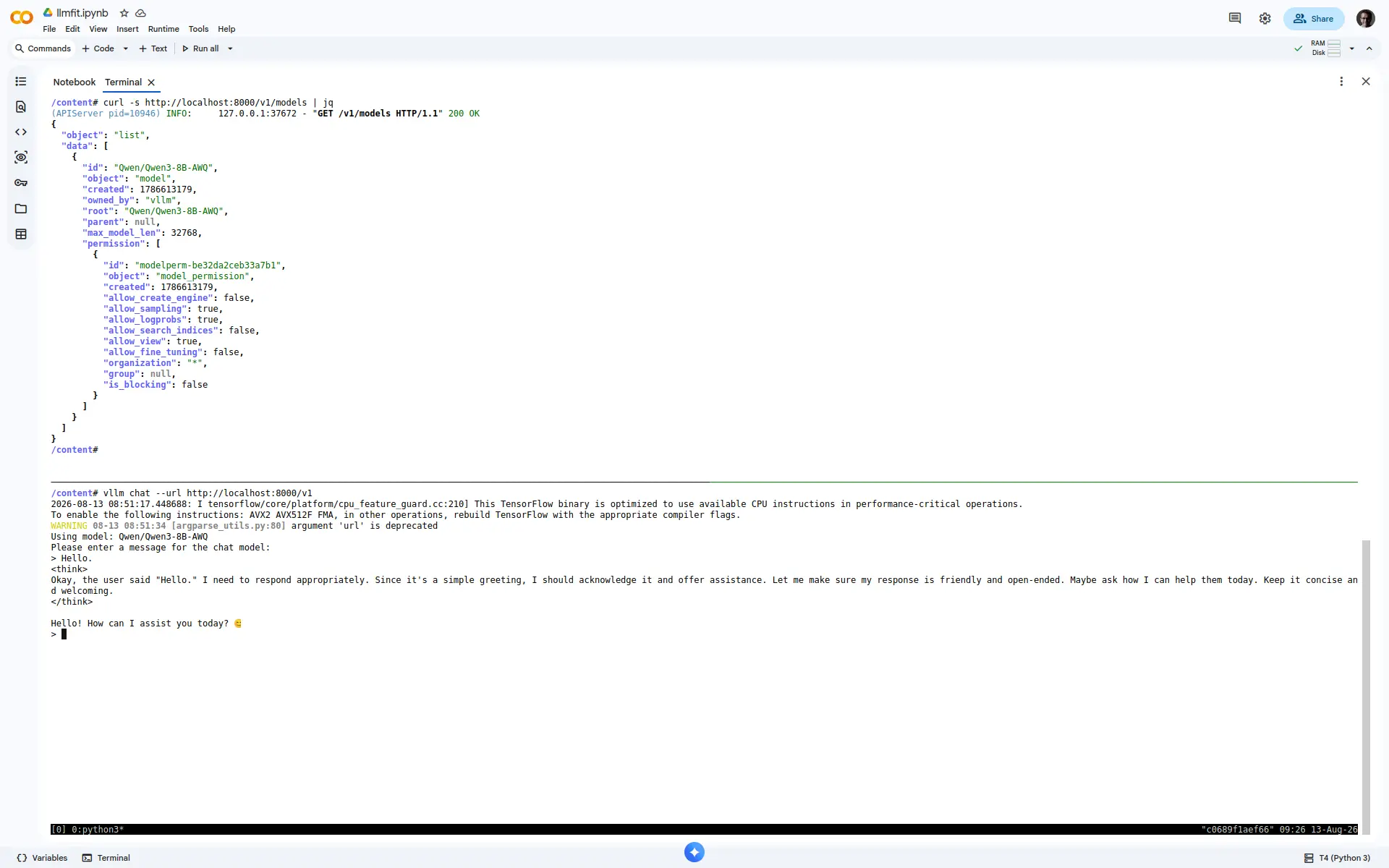
Once the server had stabilised I sent a request directly to the API and also launched a chat, both of which were successful.
Sometimes you can’t run an interactive TUI (for example, you’re in a notebook). In this case you need to revert to the CLI version of llmfit. No great loss though, this works really well too.
Unlike Google Colab, notebooks on Kaggle don’t expose a separate command shell. No problem: use the CLI from the notebook. To get a selection of models that should run perfectly on Kaggle:
# Use a  `!` prefix to run this from a notebook cell!
llmfit fit --perfect -n 30
I’ll dig into the CLI details later. For the moment though, this gives a list of the top 30 models that should fit perfectly onto the Kaggle hardware.
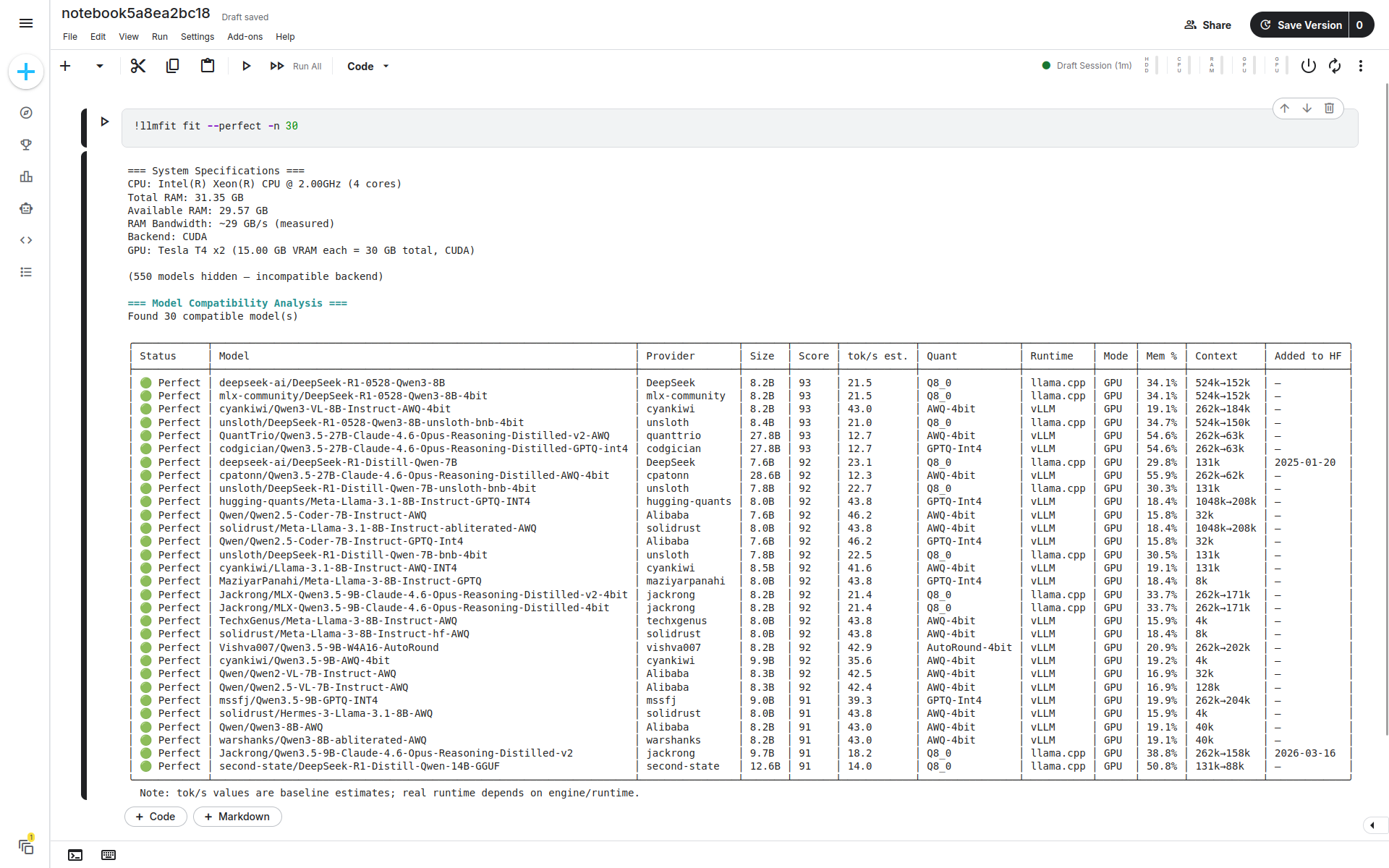
The selected model sizes and token rates are similar to those on Colab. The memory utilisation is appreciably different: on Kaggle it’s roughly half of what the same model consumed on Colab. This is because on Colab there’s just a single T4 per instance (15 GB VRAM), while on Kaggle there are two (30 GB VRAM)!
Before looking at the details of the llmfit CLI it makes sense to consider the model catalogue, which is where all of the information comes from. The model catalogue contains the specifications of all models considered by llmfit. It’s stored as a JSON file in the llmfit repository and compiled into the executable. Consequently the list of models considered is linked directly to the llmfit version.
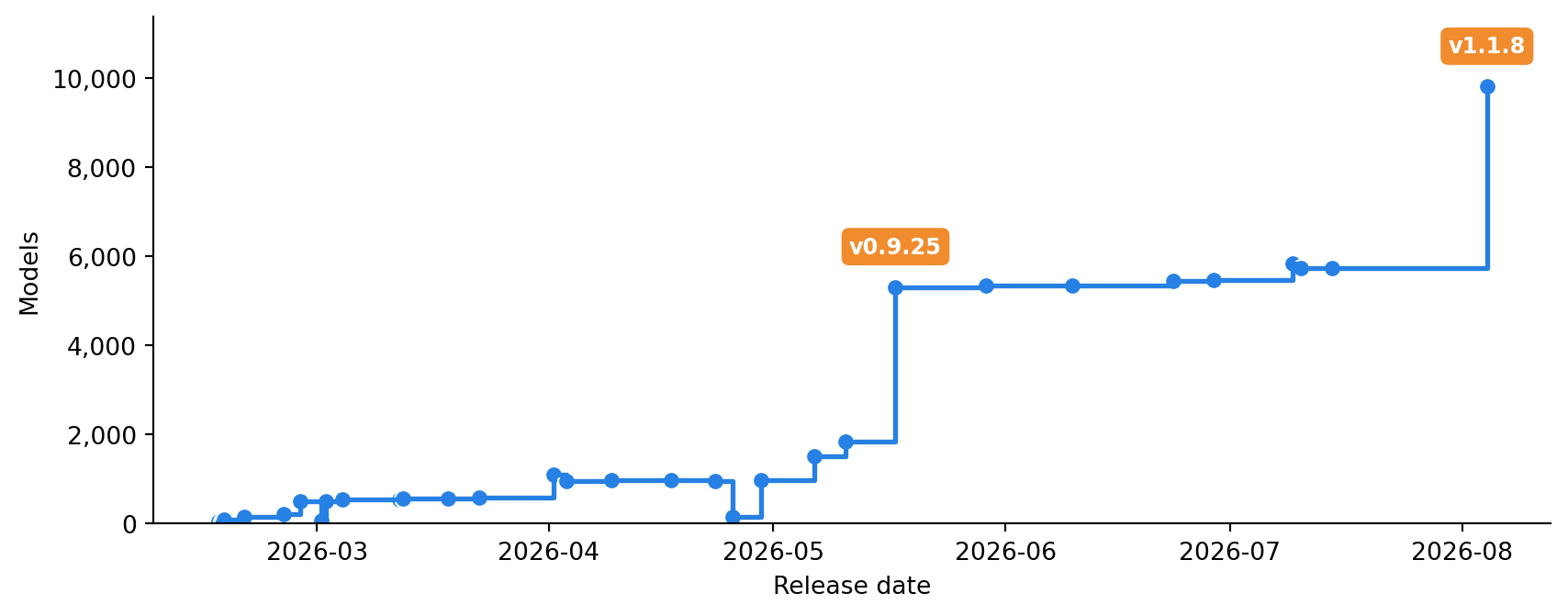
The model database is embedded at compile time, so end users get updates by upgrading llmfit itself. The catalogue is growing rapidly, with a big jump in the number of models with the v1.1.8 release.
llmfit catalogue.
The method used for scoring models is documented in the project’s How llmfit Works page. The short version is that llmfit:
It matches how I try to think about local models. Don’t start by saying “I need Q4_K_M” as if that were handed down on a stone tablet. Start with the model family and the hardware, then ask which quantisation gives an acceptable compromise.
Although the TUI is useful for getting a quick, interactive view of what models will run on a system, the real power of llmfit lies in using the CLI. There are a number of CLI commands and I’ll be taking a closer look at a subset of them:
system — Show system hardware specifications.list — List all available LLM models.search — Search for specific models.info — Show detailed information about a specific model.diff — Compare two models side-by-side.fit — Find models that fit your system.recommend — Recommend top models for your hardware.bench — Benchmark inference performance against running providers.plan — Plan hardware requirements for a specific model configuration.I’ll exercise these commands on my local machine. In some cases I have abridged the output for clarity.
The system command gives you a summary of your relevant hardware.
llmfit system=== System Specifications ===
CPU: 12th Gen Intel(R) Core(TM) i7-1270P (16 cores)
Total RAM: 31.05 GB
Available RAM: 17.67 GB
RAM Bandwidth: ~94 GB/s (measured)
Backend: SYCL
GPU: Intel Alder Lake-P GT2 [Iris Xe Graphics] (unified memory, 31.05 GB shared, SYCL)It picks up my CPU and GPU (correctly identifying the SYCL backend), along with how much RAM I have and how much of that is currently available.
The list command will output every model in the catalogue. It’s not really useful on a day to day basis, but can be handy if you need to dump all of the models to file. It has --csv and --json options to specify output format and --sort can be used to order the output by a specific field.
More useful, the search command matches models by name.
llmfit search Qwen/Qwen3.5=== Search Results for 'Qwen/Qwen3.5' ===
Found 16 model(s)
╭──────────────────────────────────┬───────┬───────────┬─────────┬─────────────╮
│ Model │Size │ Quant │ Context │ Added to HF │
├──────────────────────────────────┼───────┼───────────┼─────────┼─────────────┤
│ Qwen/Qwen3.5-35B-A3B-Base │36.0B │ Q4_K_M │ 262k │ — │
│ Qwen/Qwen3.5-122B-A10B-GPTQ-Int4 │125.1B │ GPTQ-Int4 │ 262k │ — │
│ Qwen/Qwen3.5-0.8B │873M │ Q4_K_M │ 262k │ 2026-02-28 │
│ Qwen/Qwen3.5-122B-A10B │125.1B │ Q4_K_M │ 262k │ 2026-02-24 │
│ Qwen/Qwen3.5-397B-A17B │403.4B │ Q4_K_M │ 262k │ 2026-02-16 │
│ Qwen/Qwen3.5-397B-A17B-FP8 │403.4B │ Q4_K_M │ 262k │ — │
│ Qwen/Qwen3.5-9B │9.7B │ Q4_K_M │ 262k │ 2026-02-27 │
│ Qwen/Qwen3.5-4B │4.7B │ Q4_K_M │ 262k │ 2026-02-27 │
│ Qwen/Qwen3.5-2B │2.3B │ Q4_K_M │ 262k │ 2026-02-28 │
│ Qwen/Qwen3.5-27B-GPTQ-Int4 │27.8B │ GPTQ-Int4 │ 262k │ — │
│ Qwen/Qwen3.5-122B-A10B-FP8 │125.1B │ Q4_K_M │ 262k │ — │
│ Qwen/Qwen3.5-27B │27.8B │ Q4_K_M │ 262k │ 2026-02-24 │
│ Qwen/Qwen3.5-35B-A3B │36.0B │ Q4_K_M │ 262k │ 2026-02-24 │
│ Qwen/Qwen3.5-35B-A3B-FP8 │36.0B │ Q4_K_M │ 262k │ — │
│ Qwen/Qwen3.5-27B-FP8 │27.8B │ Q4_K_M │ 262k │ — │
│ Qwen/Qwen3.5-35B-A3B-GPTQ-Int4 │36.0B │ GPTQ-Int4 │ 262k │ — │
╰──────────────────────────────────┴───────┴───────────┴─────────┴─────────────╯If you want to zoom in on a specific model then use the info command. Use --json to generate JSON output.
llmfit info Qwen/Qwen3.5-27B=== Qwen/Qwen3.5-27B ===
Provider: Alibaba
Parameters: 27.8B
Quantization: Q4_K_M
Best Quant: Q6_K
Context Length: 262144 tokens
Use Case: Multimodal, vision and text
Category: Multimodal
Released: 2026-02-24
License: apache-2.0
Runtime: llama.cpp (baseline est. ~3.8 tok/s)
Score Breakdown:
Overall Score: 80.2 / 100
Quality: 100 Speed: 9 Fit: 89 Context: 100
Baseline Est. Speed: 3.8 tok/s
Estimate Basis:
Method: per-backend heuristic constant — GPU not in the bandwidth table,
so expect a wide error band. Please report your GPU model so we
can add real bandwidth data (github.com/AlexsJones/llmfit/issues).
Models single-request generation at ctx <= 8192 tokens; prompt processing
(prefill/TTFT) is not estimated. Baseline error band is roughly +/-30%.
Verify on this machine:
llmfit bench "Qwen/Qwen3.5-27B" (against a running provider)
llama-bench -m <path-to-Q6_K-gguf> -ngl 99 -p 512 -n 128
Resource Requirements:
Min VRAM: 14.2 GB
Min RAM: 15.5 GB (CPU inference)
Recommended RAM: 25.9 GB
Disk (est): 22.2 GB (at Q6_K)
Disk/quant: Q8_0: 29.2G Q6_K: 22.2G Q5_K_M: 18.9G Q4_K_M: 16.1G Q3_K_M: 13.3G
Fit Analysis:
Status: 🟢 Perfect
Run Mode: GPU
Memory Utilization: 79.6% (24.7 / 31.0 GB)
GGUF Downloads:
unsloth → https://huggingface.co/unsloth/Qwen3.5-27B-GGUF
mradermacher → https://huggingface.co/mradermacher/Qwen3.5-27B-GGUF
Tip: llmfit download unsloth/Qwen3.5-27B-GGUF --quant Q6_K
Notes:
Context capped at 8192 tokens for estimation (model supports up to 262144)
Unified memory: GPU and CPU share the same pool
Best quantization for hardware: Q6_K (model default: Q4_K_M)
Baseline estimated speed: 3.8 tok/s Speed estimates come from a memory-bandwidth model grounded in runtime sampling and real community measurements — and every estimate ships its inputs, so llmfit info shows exactly what a number assumes and how to verify it on your machine. llmfit README
(9 August 2026)Suppose you want to compare a pair of models? Use diff.
llmfit diff Qwen/Qwen3.5-27B Qwen/Qwen2.5-32B=== System Specifications ===
CPU: 12th Gen Intel(R) Core(TM) i7-1270P (16 cores)
Total RAM: 31.05 GB
Available RAM: 17.96 GB
RAM Bandwidth: ~94 GB/s (measured)
Backend: SYCL
GPU: Intel Alder Lake-P GT2 [Iris Xe Graphics] (unified memory, 31.05 GB shared)
=== Model Diff ===
Comparing 2 model(s) (sorted by Score)
Metric M1: Qwen/Qwen3.5-27B M2: Qwen/Qwen2.5-32B
-------------------- ----------------------------- -----------------------------
Score 80.2 62.2 (-18.0)
Baseline tok/s 3.8 3.2 (-0.6)
Fit 🟢 Perfect 🟢 Perfect
Run Mode GPU GPU
Runtime llama.cpp llama.cpp
Memory % 79.6% 92.5% (+12.8)
Params 27.8B 32.8B
Context 262144 tokens 131072 tokens
Best Quant Q6_K Q6_K
Provider Alibaba AlibabaI compared the recent 27 billion parameter Qwen3.5 model to an older 32 billion parameter Qwen2.5 model. Although both models are a perfect fit to the hardware, the Qwen3.5 27B wins: 18 points of score, 19% faster generation, and lower memory pressure. And, although Qwen2.5 seems to fit, 92.5% memory occupation is uncomfortably high.
The fit command delivers the most useful functionality and has a selection of parameters that can be used to tweak the results.
Use -n or --limit to limit the number of results.
# Just show me the 20 best models that fit on my hardware.
llmfit fit -n 20
If you only want to see the models that are rated as a perfect match then also use -p or --perfect. The output can be dumped to CSV or JSON using the --csv or --json options. And you can use --sort to order by a specific field.
# Show me 20 perfect models ordered by token rate.
llmfit fit -n 20 --perfect --sort tps
Some other useful options that can be used across all commands but are particularly useful with fit:
--tool-use — Only show models that support tool use or function calling.--max-context — Set maximum context length for memory utilisation estimate.--memory — Override VRAM size.--ram — Override RAM size.--cpu-cores — Override detected number of CPUs.To list suitable models in a machine-readable format (useful for an agent or script) use the recommend command. This introduces a few new options:
--use-case — Filter by use case (general, coding, reasoning, chat, multimodal, embedding).--min-fit — Filter by minimum fit level (perfect, good, marginal).--capability — Filter by capability (vision, tool_use, audio, tts).For example, to get 3 models with audio capability that fit perfectly.
llmfit recommend --capability audio --min-fit perfect --limit 3The output is JSON, so I piped through jq ".models[].name" to get the model names.
"microsoft/Phi-4-multimodal-instruct"
"LiquidAI/LFM2-Audio-1.5B"
"LiquidAI/LFM2.5-Audio-1.5B"Run llmfit bench after selecting a candidate. See the benchmarking guide for details. For example, to benchmark gemma3:4b served locally with ollama:
llmfit bench gemma3:4b=== Benchmark Results ===
Model: gemma3:4b
Provider: ollama
Runs: 3
TPS: 8.2 avg (7.8 min / 8.6 max)
TTFT: 1441 ms avg
Latency: 22084 ms avg
Output: 163 tokens avg
Run TPS TTFT Latency Tokens
─── ─────── ─────── ─────── ──────
1 8.6 889ms 9248ms 68
2 7.8 1618ms 17779ms 121
3 8.2 1818ms 39225ms 300Once you’ve generated a benchmark you can contribute it back to the project.
llmfit bench --shareThat creates a PR against the source repository. Take a look at my PR to get an idea of what information is shared.
Suppose you want to turn the problem around: rather than asking “what models fit on my hardware?”, instead asking “what hardware do I need for this model?”. Use llmfit plan.
What hardware would I need to run Qwen/Qwen3.5-27B?
llmfit plan Qwen/Qwen3.5-27B --context 8192=== Hardware Planning Estimate ===
Model: Qwen/Qwen3.5-27B
Provider: Alibaba
Context: 8192
Quantization: Q4_K_M
KV cache: fp16
Minimum Hardware:
VRAM: 18.6 GB
RAM: 8.0 GB
CPU Cores: 4
Recommended Hardware:
VRAM: 25.9 GB
RAM: 12.0 GB
CPU Cores: 8
Feasible Run Paths:
GPU: Yes
min: VRAM=18.6 GB RAM=8.0 GB cores=4
est speed: 4.1 tok/s
CPU offload: No
CPU-only: Yes
min: VRAM=n/a RAM=18.6 GB cores=4
est speed: 2.9 tok/s
Upgrade Deltas:
+0.0 GB VRAM -> Good
+0.0 GB VRAM -> Perfect
KV Cache Alternatives:
kv kv (GB) total savings
fp16 2.00 18.61 -
fp8 1.00 17.61 -50%
q8_0 1.00 17.61 -50%
q4_0 0.50 17.11 -75%
tq (n/a) 1.58 18.20 -21%A good match to my current hardware apparently. 😊 I downloaded it and tried it out. Since the plan was based on the Q4_K_M quantisation I grabbed the appropriate GGUF from unsloth. I could launch a chat via llama-cli, but it took a long time to start and it was very sluggish. I had to shut down some other applications (my local GPU uses unified memory) to make it even remotely responsive. For a more objective assessment I closed down essentially everything else and ran llmfit bench.
=== Benchmark Results ===
Model:    qwen3.5
Provider: llamacpp
Runs:     3

TPS:      1.4 avg  (1.3 min / 1.5 max)
TTFT:     n/a (streaming required)
Latency:  211872 ms avg
Output:   300 tokens avg

Run  TPS      TTFT     Latency  Tokens
───  ───────  ───────  ───────  ──────
  1     1.3     n/ams  222367ms    300
  2     1.5     n/ams  206647ms    300
  3     1.5     n/ams  206601ms    300
For comparison I also ran llama-bench. In the interests of clarity I excised the backend column from the output below (it was Vulkan throughout).
| model                     |       size |   params | ngl |   test |           t/s |
| ------------------------- | ---------: | -------: | --: | -----: | ------------: |
| qwen35 27B Q4_K - Medium  |  15.58 GiB |  26.90 B |  -1 |  pp512 |  25.34 ± 0.07 |
| qwen35 27B Q4_K - Medium  |  15.58 GiB |  26.90 B |  -1 |  tg128 |   1.57 ± 0.01 |
Those two benchmarks are testing different things, but that’s a dramatic difference between the pp512 and tg128 token rates. Interesting. I ran the same benchmark using the -ngl argument to determine how many of the model layers were actually running on the GPU. I changed the order of the benchmarks in the table, so that pp512 and then tg128 are grouped together.
| model                     |       size |   params | ngl |   test |           t/s |
| ------------------------- | ---------: | -------: | --: | -----: | ------------: |
| qwen35 27B Q4_K - Medium  |  15.58 GiB |  26.90 B |   0 |  pp512 |   7.70 ± 0.00 |
| qwen35 27B Q4_K - Medium  |  15.58 GiB |  26.90 B |  10 |  pp512 |   7.75 ± 0.00 |
| qwen35 27B Q4_K - Medium  |  15.58 GiB |  26.90 B |  20 |  pp512 |   7.80 ± 0.01 |
| qwen35 27B Q4_K - Medium  |  15.58 GiB |  26.90 B |  30 |  pp512 |   7.86 ± 0.00 |
| qwen35 27B Q4_K - Medium  |  15.58 GiB |  26.90 B |  40 |  pp512 |   7.92 ± 0.01 |
| qwen35 27B Q4_K - Medium  |  15.58 GiB |  26.90 B |  50 |  pp512 |   8.00 ± 0.04 |
| qwen35 27B Q4_K - Medium  |  15.58 GiB |  26.90 B |  60 |  pp512 |   5.89 ± 0.84 |
| qwen35 27B Q4_K - Medium  |  15.58 GiB |  26.90 B |  64 |  pp512 |   8.11 ± 0.14 |
| qwen35 27B Q4_K - Medium  |  15.58 GiB |  26.90 B |  65 |  pp512 |  25.36 ± 0.07 |
| qwen35 27B Q4_K - Medium  |  15.58 GiB |  26.90 B |   0 |  tg128 |   1.54 ± 0.00 |
| qwen35 27B Q4_K - Medium  |  15.58 GiB |  26.90 B |  10 |  tg128 |   1.52 ± 0.01 |
| qwen35 27B Q4_K - Medium  |  15.58 GiB |  26.90 B |  20 |  tg128 |   1.55 ± 0.01 |
| qwen35 27B Q4_K - Medium  |  15.58 GiB |  26.90 B |  30 |  tg128 |   1.56 ± 0.00 |
| qwen35 27B Q4_K - Medium  |  15.58 GiB |  26.90 B |  40 |  tg128 |   1.59 ± 0.00 |
| qwen35 27B Q4_K - Medium  |  15.58 GiB |  26.90 B |  50 |  tg128 |   1.62 ± 0.00 |
| qwen35 27B Q4_K - Medium  |  15.58 GiB |  26.90 B |  60 |  tg128 |   1.25 ± 0.03 |
| qwen35 27B Q4_K - Medium  |  15.58 GiB |  26.90 B |  64 |  tg128 |   1.65 ± 0.02 |
| qwen35 27B Q4_K - Medium  |  15.58 GiB |  26.90 B |  65 |  tg128 |   1.43 ± 0.02 |
The token rate for pp512 is relatively low all the way up to -ngl 64. Only at -ngl 65 does it finally flip to a higher rate. According to the relevant model card the model has 64 transformer layers. But there’s also a final output layer, bringing the total number of layers to 65. This model only performs to its full potential on my hardware when all of those layers are on the GPU.
The token rate estimated by llmfit plan was 4.1 tokens per second, so the observed rate of around 1.5 tokens per second is disappointing. From a benchmarking perspective the model performs best when it’s all on the GPU. Not surprising. This really only affects the pp512 benchmark though. The tg128 is a better reflection of the model’s performance for chat-style usage, and that number remains disappointingly low regardless of what proportion of the model is on the GPU. Is this a problem with the model or my machine? Neither really. I just had unrealistic expectations. My GPU is an integrated GPU (iGPU), which means that it shares the system’s memory rather than having its own dedicated VRAM. And the system memory has substantially lower bandwidth than that typically found in VRAM. Memory is the bottleneck for token generation. This distinction doesn’t seem to be captured by llmfit.
For grins and grimaces let’s look at a more ambitious model. What about deepseek-ai/DeepSeek-R1?
llmfit plan deepseek-ai/DeepSeek-R1 --context 8192=== Hardware Planning Estimate ===
Model: deepseek-ai/DeepSeek-R1
Provider: DeepSeek
Context: 8192
Quantization: Q4_K_M
KV cache: fp16
Minimum Hardware:
VRAM: 410.9 GB
RAM: 82.2 GB
CPU Cores: 4
Recommended Hardware:
VRAM: 637.5 GB
RAM: 102.7 GB
CPU Cores: 8
Feasible Run Paths:
GPU: Yes
min: VRAM=410.9 GB RAM=82.2 GB cores=4
est speed: 0.2 tok/s
CPU offload: No
CPU-only: Yes
min: VRAM=n/a RAM=410.9 GB cores=4
est speed: 0.1 tok/s
Upgrade Deltas:
+379.8 GB VRAM -> Good
+606.5 GB VRAM -> Perfect
+61.7 GB RAM -> Runnable
KV Cache Alternatives:
kv kv (GB) total savings
fp16 13.34 410.87 -
fp8 6.67 404.20 -50%
q8_0 6.67 404.20 -50%
q4_0 3.34 400.86 -75%
tq (n/a) 2.27 399.80 -83%Ooof! That’s not happening any time soon. ☹️
It’s still early days for llmfit. Its speed estimates are only as good as the data behind them. This is probably why it predicted a token rate for my machine which was appreciably higher than I observed. Right now llmfit is working from a limited set of benchmarks. As more people run llmfit bench on their own hardware and submit results, the token-rate predictions will get more accurate across a wider range of GPUs, quantisations, and model sizes. If you’ve got a setup that isn’t well represented yet, then run a benchmark and contribute your numbers. Your submissions are really useful: llmfit is the kind of tool that gets better with time and use.
Download a model, serve it, and measure real tok/s on your hardware — then contribute the results back to the project as a PR, straight from the TUI. NoghCLI, no third-party account. Every run is saved locally first, your own measurements replace estimates in the fit table, and each merged submission ships in the next release: anyone on identical hardware gets measured✓numbers before they ever run a benchmark.
llmfit README
(9 August 2026)Use llmfit to turn a large catalogue into a shortlist. Then run the chosen model with the intended runtime and context length, and keep it only after a local benchmark is acceptable.
Subsequent to writing this post I came across CanIRun.ai, which aims to do the same thing as llmfit but directly from a browser. At present it doesn’t identify any models that are suitable for my local machine, but I think that this is because it’s coverage is currently limited to “55+ curated open models” (as on 27 August 2026). For more details take a look at the repository on GitHub.